The original article is here: https://petri.com/7-steps-to-migrate-windows-2012-r2-domain-controllers-to-windows-server-2019/#5_Move_Flexible_Single_Master_Operation_FSMO_roles_to_new_server
In this article, I’m going to take you through the high-level steps for migrating a Windows Server 2012 R2 DC to Windows Server 2016 or Windows Server 2019. The procedure is the same, regardless of whether you choose Server 2016 or 2019. But I recommend migrating straight to Windows Server 2019. There simply isn’t a reason not to.
1. Set up a new server using Windows Server 2019
The first step is to install Windows Server 2019 on a new physical device or virtual machine. If you are more technically experienced with Windows Server, you could choose to install Server Core and then perform the necessary steps using PowerShell or by remotely connecting to the new server using Server Manager or Windows Admin Center. Otherwise, install Windows Server with the Desktop Experience role enabled.
If you are installing Windows Server 2016, you can check out Aidan Finn’s article on Petri here.
2. Join the new server to your existing Active Directory domain
Once the new server is up and running, join it to your existing AD domain. You can start the process from the Local Server tab in Server Manager by clicking WORKGROUP under the Properties. The procedure is then the same as joining Windows 10 to an AD domain. You will need to reboot the server to complete the process.
3. Install the Active Directory Domain Services role
Wait for the server to reboot and then sign in with a domain admin account. You can then install the Active Directory Domain Services (AD DS) server role using Server Manager and the Add Roles and Features wizard in the Manage menu. You can also use the following PowerShell command:
Install-WindowsFeature -Name AD-Domain-Services -IncludeManagementTools
4. Promote the new server to a domain controller
When the AD DS server role has been installed, you’ll get a notification in Server Manager prompting you to promote the server to a domain controller. Clicking the yellow exclamation mark icon will launch the AD DS configuration wizard. You should choose to ‘Add a domain controller to an existing domain’ and follow through the on-screen instructions. And providing that you are signed in with a domain admin account, adprep will automatically prepare your existing domain.
5. Move Flexible Single Master Operation (FSMO) roles to new server
The next step is to log on to the old domain controller and move the domain and forest FSMO roles, there are five in total, to the new DC. The easiest way to do this is using PowerShell. In the command below, you should replace DC1 with the name of your new DC.
This article assumes you have a domain with only one DC. In practice it’s likely that you will have more than one DC, so make sure you understand how FSMO roles work and on which DCs they are located in your domain and forest.
Move-ADDirectoryServerOperationMasterRole -Identity DC1 -OperationMasterRole 0,1,2,3,4
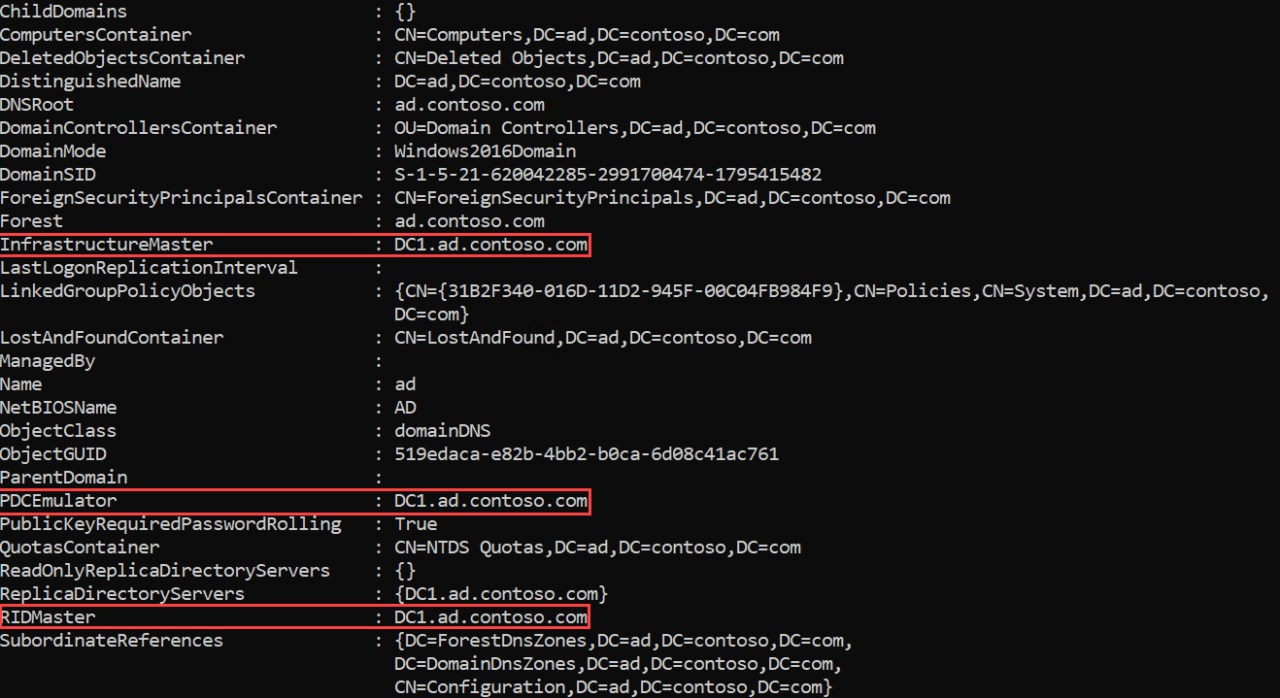
On the new domain controller, confirm that the FSMO roles have been moved. Start by checking the domain FSMO roles. Using Get-ADDomain, check the name of the server next to the following entries: InfrastructureMaster, PDCEmulator, and RIDMaster. The server name should match that of your new domain controller. Similarly, using Get-ADForest, check the name of the server next to the following entries: SchemaMaster and DomainNamingMaster. Again, the server name should match that of your new domain controller.
6. Demote your old domain controller
Now that you have moved the FSMO roles to the new DC, you can safely demote the old Windows Server 2012 R2 domain controller. You can demote a DC using Server Manager. One way to demote a DC is to use the Remove Roles and Features command in the Manage menu to remove the AD DS server role. Removing the role will open the Active Directory Domain Services Configuration wizard and take you through the steps to demote the DC before the AD DS role can be removed.
Alternatively, you can use the Uninstall-ADDSDomainController and Uninstall-WindowsFeature PowerShell cmdlets to demote the DC and uninstall the AD DS server role respectively.
7. Raise the domain and forest functional levels
Finally, you can raise the domain and forest functional levels to Windows Server 2016. Even if you are running Windows Server 2019, the highest functional levels are Windows Server 2016. You can confirm the domain and forest levels using Get-ADDomain and Get-ADForest cmdlets.
Set-ADDomainMode -Identity CONTOSO -DomainMode Windows2016Domain
Set-ADForestMode -Identity CONTOSO Windows2016Forest
And that is it! As you can see, while there are several steps, it is relatively simple to migrate a DC to a more current version of Windows Server. So, I encourage you to look at migrating any DCs that are running anything below Windows Server 2016.