Oktober 30th, 2023

Updating and Installing Self-Hosted UniFi Network Servers (Linux)

This article provides the steps to install and update the self-hosted UniFi Network Server to the current stable release on a Debian or Ubuntu system via APT (Advanced Package Tool). If you run into issues following the process described in this article, please take a look at the scripts provided here to install and update the UniFi Network Application.

Requirements

In order to update the UniFi Network Server via APT, it is necessary to create source files or edit lines in an existing sources.list file with Linux text editors: vi or nano. The repo structure should be permanent, but if there are any changes, they will be pointed out in the UniFi Network software version release posts, found in the Release section of the Community.

Before upgrading the UniFi Network Server, make sure that you have backed up the UniFi Network Database. You will need to make sure that the user has sudo permissions. For more information about adding a user to sudo list, see this Debian article.

UniFi Network APT Steps

See an example of what scripts the UI Community is using to install and update the UniFi Network Server on any Ubuntu or Debian-based system in this Community post.

  1. Install required packages before you begin with the following command:
    sudo apt-get update && sudo apt-get install ca-certificates apt-transport-https
  2. Use the following command to add a new source list:
    echo 'deb [ arch=amd64 ] https://www.ui.com/downloads/unifi/debian stable ubiquiti' | sudo 
    tee /etc/apt/sources.list.d/100-ubnt-unifi.list
  3. Add the GPG Keys.
    1. Method A – Recommended
      1. Install the following trusted key into /etc/apt/trusted.gpg.d
        sudo wget -O /etc/apt/trusted.gpg.d/unifi-repo.gpg https://dl.ui.com/unifi/unifi-repo.gpg
    2.  Method B
      1. Using apt-key:
        sudo apt-key adv --keyserver keyserver.ubuntu.com --recv 06E85760C0A52C50
  4. For a new UniFi Network Server, install MongoDB. For Ubuntu 22.04, run the commands below. If you’re updating the UniFi Network Server to version 7.5, ignore these commands and instead refer to MongoDB’s help article to update your database to the required MongoDB version 3.6.
    wget -qO - https://www.mongodb.org/static/pgp/server-3.6.asc | sudo apt-key add -
    echo "deb https://repo.mongodb.org/apt/ubuntu bionic/mongodb-org/3.6 multiverse" | sudo tee /etc/apt/
    sources.list.d/mongodb-org-3.6.list
    sudo apt-get update

    This step may not be required, depending on the Linux distro you have. If your distro does not come with MongoDB, and it’s not available in their repo, then please see the MongoDB installation guide (Ubuntu | Debian). 

  5. Install and upgrade the UniFi Network application with the following command:
    sudo apt-get update && sudo apt-get install unifi -y
  6. The UniFi Network application should now be accessible at the computer’s configured local or public IP address, by typing that IP address in a browser’s navigation bar (Chrome is recommended). If it is not launching, use the following command:
    sudo service unifi start

When using the commands above, it is assumed you have sudo and wget installed. More information about sudo can be found here, and wget here.


Other Helpful Commands

  • To stop the UniFi service: sudo service unifi stop
  • To restart the UniFi service: sudo service unifi restart
  • To see the status of UniFi service: sudo service unifi status
Click here for possible suite names and code names.

Log Files Location

Log files are essential for any troubleshooting. Find them here:

  • /usr/lib/unifi/logs/server.log
  • /usr/lib/unifi/logs/mongod.log

If your application is running on a Unix/Linux based system, then you will require superuser (sudo) privileges to access these log files.

Notes and Tips

These notes have been added thanks to user collaboration. Click to expand.
  • This Community post shares some scripts to install and update the UniFi Network Application for any recent Ubuntu or Debian version.
  • If you are installing in a VM or a headless server, you may encounter entropy issues. This could be anything from slow service start/restart to complete service failure. The fix is to install haveged. This is an external link for a tutorial on the subject.
  • Since UniFi Network version 5.6.x the UniFi service does not run as root. This means that you cannot bind to privileged ports (<1024). The application will fail to start if you try to use these ports. 
  • The following affects APT versions 1.5 onward (Ubuntu 17.10 and Debian Sid or newer). A recent version of the apt-secure man page stated: „Since version 1.5 changes in the information contained in the Release file about the repository need to be confirmed before APT continues to apply updates from this repository“, meaning that when performing an update from a major version to the next (for example 5.5.x to 5.6.x) the apt-get update will result in an error.
    • To fix this run the command the following way: apt-get update --allow-releaseinfo-change
    • If you receive an error stating the command is not understood in combination with the other options, users have reported that issuing the following two commands has fixed it: issue apt clean and hit enter, followed by apt-get update and enter.
  • The UniFi Network application, when installed on Debian and Ubuntu, will not have a GUI since it’s being run as a Service. Please use the service command for starting, stopping and restarting the UniFi Network application.
  • If you see the following error on your DNS server, a user reports solving this by forcing the system to use 8.8.8.8 as DNS server, not his ISP.
  • At the moment Ubiquiti does not support arm64, hence it is not available via the repo. A download and manual installation will be necessary for this.
  • In the Add the GPG Keys, method B: Source: External Link. For users behind restrictive firewalls the following command will allow them to import the GPG key:

    apt-key adv --keyserver hkp://keyserver.ubuntu.com:80 --recv 06E85760C0A52C50

  • Because of the Java 8 dependency, when using UniFi Network 5.7.X some additional steps might be needed. See this Community post for details.
  • The command apt-get is apt in Ubuntu older than 16.04.
by admin | Posted in Linux | Kommentare deaktiviert für Updating and Installing Self-Hosted UniFi Network Servers (Linux) |
Juni 14th, 2023

Server Migration

The original article is here: https://petri.com/7-steps-to-migrate-windows-2012-r2-domain-controllers-to-windows-server-2019/#5_Move_Flexible_Single_Master_Operation_FSMO_roles_to_new_server


In this article, I’m going to take you through the high-level steps for migrating a Windows Server 2012 R2 DC to Windows Server 2016 or Windows Server 2019. The procedure is the same, regardless of whether you choose Server 2016 or 2019. But I recommend migrating straight to Windows Server 2019. There simply isn’t a reason not to.

1. Set up a new server using Windows Server 2019

The first step is to install Windows Server 2019 on a new physical device or virtual machine. If you are more technically experienced with Windows Server, you could choose to install Server Core and then perform the necessary steps using PowerShell or by remotely connecting to the new server using Server Manager or Windows Admin Center. Otherwise, install Windows Server with the Desktop Experience role enabled.

If you are installing Windows Server 2016, you can check out Aidan Finn’s article on Petri here.

2. Join the new server to your existing Active Directory domain

Once the new server is up and running, join it to your existing AD domain. You can start the process from the Local Server tab in Server Manager by clicking WORKGROUP under the Properties. The procedure is then the same as joining Windows 10 to an AD domain. You will need to reboot the server to complete the process.

3. Install the Active Directory Domain Services role

Wait for the server to reboot and then sign in with a domain admin account. You can then install the Active Directory Domain Services (AD DS) server role using Server Manager and the Add Roles and Features wizard in the Manage menu. You can also use the following PowerShell command:

Install-WindowsFeature -Name AD-Domain-Services -IncludeManagementTools

4. Promote the new server to a domain controller
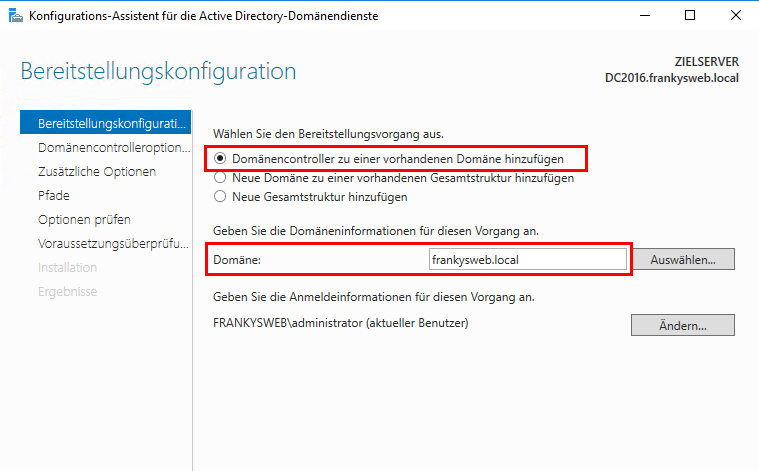
When the AD DS server role has been installed, you’ll get a notification in Server Manager prompting you to promote the server to a domain controller. Clicking the yellow exclamation mark icon will launch the AD DS configuration wizard. You should choose to ‘Add a domain controller to an existing domain’ and follow through the on-screen instructions. And providing that you are signed in with a domain admin account, adprep will automatically prepare your existing domain.
5. Move Flexible Single Master Operation (FSMO) roles to new server

The next step is to log on to the old domain controller and move the domain and forest FSMO roles, there are five in total, to the new DC. The easiest way to do this is using PowerShell. In the command below, you should replace DC1 with the name of your new DC.

This article assumes you have a domain with only one DC. In practice it’s likely that you will have more than one DC, so make sure you understand how FSMO roles work and on which DCs they are located in your domain and forest.

Move-ADDirectoryServerOperationMasterRole -Identity DC1 -OperationMasterRole 0,1,2,3,4

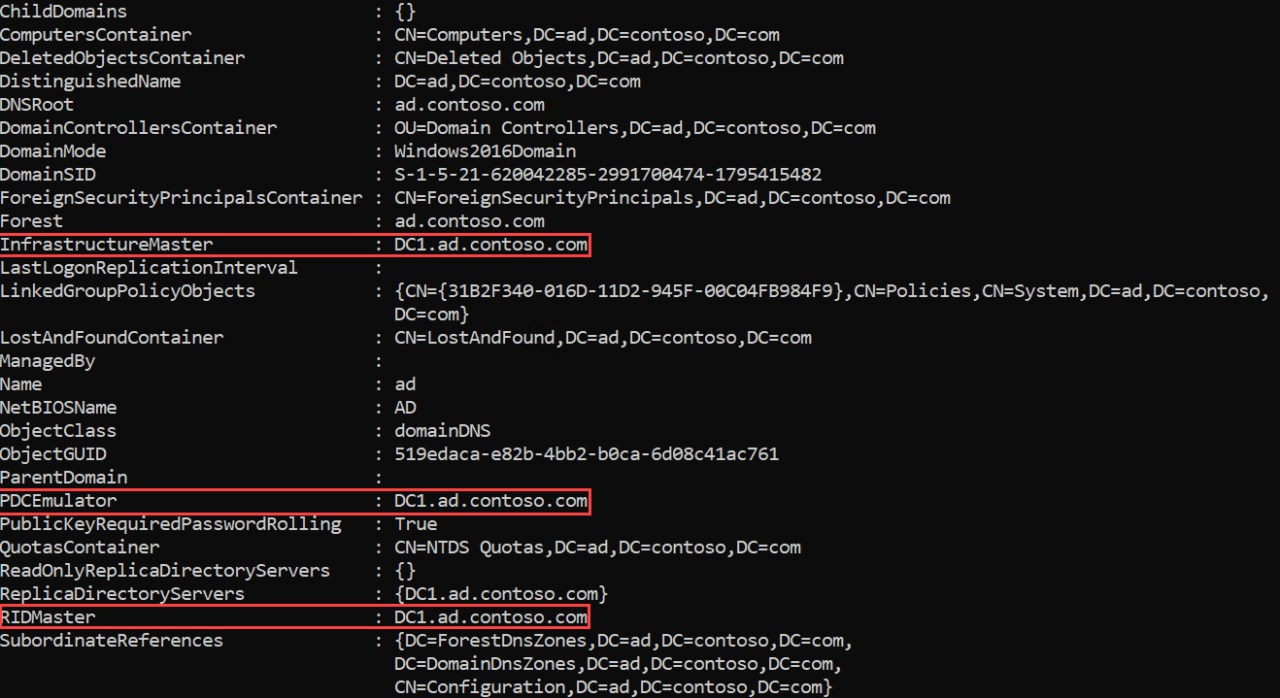
On the new domain controller, confirm that the FSMO roles have been moved. Start by checking the domain FSMO roles. Using Get-ADDomain, check the name of the server next to the following entries: InfrastructureMaster, PDCEmulator, and RIDMaster. The server name should match that of your new domain controller. Similarly, using Get-ADForest, check the name of the server next to the following entries: SchemaMaster and DomainNamingMaster. Again, the server name should match that of your new domain controller.

Image #1 Expand
7 Steps to Migrate Windows 2012 R2 Domain Controllers to Windows Server 2019 (Image Credit: Russell Smith)


6. Demote your old domain controller

Now that you have moved the FSMO roles to the new DC, you can safely demote the old Windows Server 2012 R2 domain controller. You can demote a DC using Server Manager. One way to demote a DC is to use the Remove Roles and Features command in the Manage menu to remove the AD DS server role. Removing the role will open the Active Directory Domain Services Configuration wizard and take you through the steps to demote the DC before the AD DS role can be removed.

Alternatively, you can use the Uninstall-ADDSDomainController and Uninstall-WindowsFeature PowerShell cmdlets to demote the DC and uninstall the AD DS server role respectively.

7. Raise the domain and forest functional levels

Finally, you can raise the domain and forest functional levels to Windows Server 2016. Even if you are running Windows Server 2019, the highest functional levels are Windows Server 2016. You can confirm the domain and forest levels using Get-ADDomain and Get-ADForest cmdlets.

Set-ADDomainMode -Identity CONTOSO -DomainMode Windows2016Domain
Set-ADForestMode -Identity CONTOSO Windows2016Forest

And that is it! As you can see, while there are several steps, it is relatively simple to migrate a DC to a more current version of Windows Server. So, I encourage you to look at migrating any DCs that are running anything below Windows Server 2016.

by admin | Posted in Server | Kommentare deaktiviert für Server Migration |
Juni 14th, 2023

Sharepoint Dateien in OneDrive (lokal) nicht bearbeitbar

In der Bibliothek -> Einstellungen -> Versionsverwaltungseinstellungen -> (aktuell ganz unten) Auschecken erfordern auf „NEIN“ und schon geht alles.

by admin | Posted in Office | Kommentare deaktiviert für Sharepoint Dateien in OneDrive (lokal) nicht bearbeitbar |
März 28th, 2022

Adobe – Reader DC – Automatische Updaten via Registry Anpassung deaktiviern


Schritte:

  1. Melden Sie sich als Administrator an.
  2. Öffnen Sie die Windows Registry und navigieren in das folgende Verzeichnis:

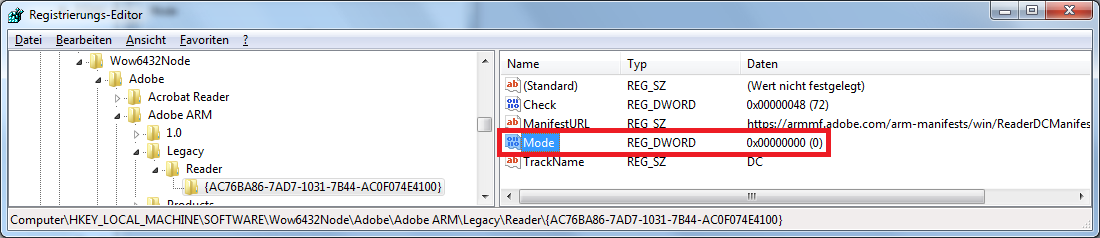
    HKEY_LOCAL_MACHINE\SOFTWARE\Wow6432Node\Adobe\Adobe ARM\Legacy\Reader\{Produkt Code}

  3. Ändern Sie den Wert des Schlüssels (DWORD) Mode ab in:
    Wert Beschreibung
    0 Do not download or install updates automatically.
    1 Do not download or install updates automatically.
    2 Automatically download updates but let the user choose when to install them.
    3 Automatically download and install updates.
    HINWEIS: Ist der DEFAULT Wert
    4 Notify the user downloads are available but do not download them.

    AutoUpdate Funktion des Adobe Reader DC's deaktivieren - Registry
    Bild zur Vergrößerung anklicken …

  4. Klicken Sie auf OK und schließen die Registry.
  5. Starten sie den Rechner neu.


Wenn Sie die oben genannten Schritte durchgeführt haben, wurde die Auto Update Funktion deaktiviert.

by admin | Posted in Programme | Kommentare deaktiviert für Adobe – Reader DC – Automatische Updaten via Registry Anpassung deaktiviern |
Februar 16th, 2022

Windows Server 2016: Converting Evaluation to Licensed Version

Windows Server 2016: Converting Evaluation to Licensed Version

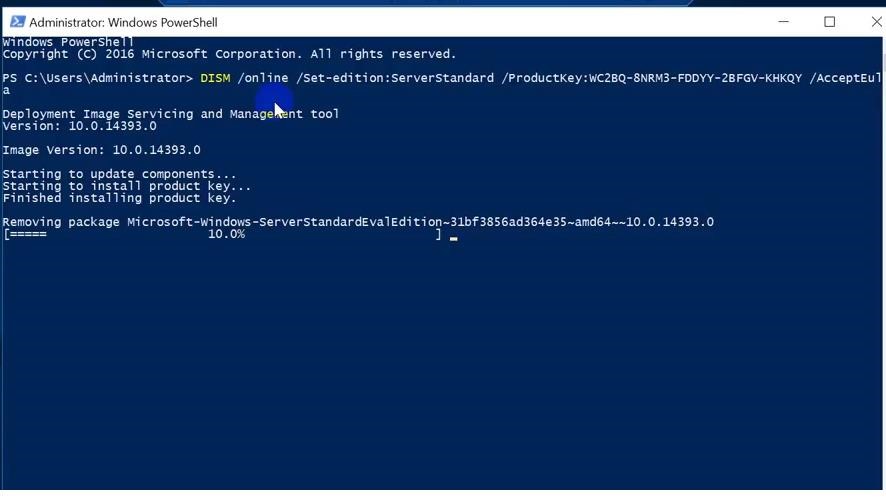
To upgrade Windows Server Evaluation to a full version, you need to use the public KMS (GVLK) key for Windows Server 2016. The conversion is performed via the command prompt using the built-in DISM tool. For example, to upgrade your Eval edition to the Retail version of Windows Server 2016 Standard, use the command:

dism /online /set-edition:ServerStandard /productkey:WC2BQ-8NRM3-FDDYY-2BFGV-KHKQY /accepteula

dism /online /set-edition:ServerStandard /productkey

If you specify your retail or MAK key instead of a public GVLK key in the DISM command, an error will appear:

Error 1168
The specified product key could not be validated.
Check that the specified product key is valid and that it matches the target edition.

Error 1168 The specified product key could not be validated

Always use the Microsoft GVLK key when upgrading the Windows Server edition. You will later replace it with your own product key.

Some users complain that sometimes when you run a DISM /set-edition command, it hangs by 10%. In this case, we recommend you find and stop the Software Protection Service (Stop-Service sppsvc -Force) and disable Internet access (you can even disconnect the Ethernet LAN cable).

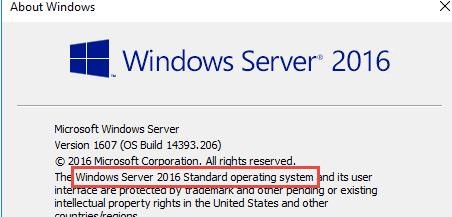
After you run this command, wait for the message Command completed successfully (in some cases it may take several hours!!!). After that restart your server and make sure you have a full Standard edition installed.

winver.exe

winver

To upgrade Windows Server 2016 Eval to the Datacenter edition, you need to use another GVLK key. The command will look like this:

DISM /online /Set-Edition:ServerDatacenter /ProductKey:CB7KF-BWN84-R7R2Y-793K2-8XDDG /AcceptEula

If a KMS server is deployed in your local network (What is Volume KMS activation?), you can use it to activate your Windows Server OS with the following commands:

slmgr /ipk WC2BQ-8NRM3-FDDYY-2BFGV-KHKQY (this is the GVLK key for Windows Server 2016 Standard, another product key is used for Datacenter, it is listed above)
slmgr /ato

If there is no KMS server, you can specify your MAK or Retail product key for Windows Server and activate the OS as usual: via the Internet or by phone.

Remove the current key:

slmgr.vbs /upk
slmgr.vbs /cpky

Enter your MAK or retail product key:

slmgr.vbs /ipk xxxxx-xxxxx-xxxxx-xxxxx-xxxxx

Activate a Windows Server instance:
slmgr.vbs /ato

Windows Server 2019: Upgrade Evaluation to Full Version

To convert Windows Server 2019 EVAL to a full edition, you need to use the GVLK (KMS) keys for Windows Server 2019. You can upgrade Windows Server 2019 edition the same way.

Convert Windows Server 2019 Evaluation to Windows Server 2019 Standard:

dism /online /set-edition:ServerStandard /productkey:N69G4-B89J2-4G8F4-WWYCC-J464C /accepteula

In order to convert Windows Server 2019 Evaluation to Windows Server 2019 Datacenter edition:

dism /online /set-edition:ServerDatacenter /productkey:WMDGN-G9PQG-XVVXX-R3X43-63DFG /accepteula

Confirm the command, restart the server. After rebooting, make sure your Windows Server Eval edition is converted to full retail.

Windows Server 2022: Converting Evaluation to the Retail Edition

Although the official RTM version of Windows Server 2022 has not yet been released, Microsoft has already published the public KMS client setup keys (GVLKs) for this OS version.

The command to convert Windows Server 2022 Evaluation edition to Standard:

dism /online /set-edition:serverstandard /productkey:VDYBN-27WPP-V4HQT-9VMD4-VMK7H /accepteula

Convert eval instance to Windows Server 2022 Datacenter:

dism /online /set-edition:serverdatacenter /productkey:WX4NM-KYWYW-QJJR4-XV3QB-6VM33 /accepteula

A complete list of public KMS client setup keys from Microsoft for all supported Windows versions is available here http://technet.microsoft.com/en-us/library/jj612867.aspx.

Possible DISM errors:

  • Error: 50. Setting an Edition is not supported with online images — Most likely, your server has an Active Directory Domain Controller role (AD DS) deployed. Converting of Windows Server edition on a DC is not supported;
  • This Windows image cannot upgrade to the edition of Windows
    that was specified. The upgrade cannot proceed. Run the
    /Get-TargetEditions option to see what edition of Windows you can
    upgrade to
    — the error appears if you try to convert Windows Server Evaluation Datacenter to Standard. You cannot upgrade Eval Datacenter to Standard. You need to convert the ServerDatacenterEval edition to ServerDatacenter. Specify the KMS key for Windows Server Datacenter edition in the DISM command
by admin | Posted in Windows Server | Kommentare deaktiviert für Windows Server 2016: Converting Evaluation to Licensed Version |
Januar 5th, 2022

pfSense OpenVPN Server und User einrichten – Tutorial

Link: https://technium.ch/pfsense-openvpn-server-und-user-einrichten-tutorial/

Zertifikate erstellen

Sowohl die pfSense Firewall als auch der Client benötigt für das VPN ein Zertifikat. Diese lassen sich ganz einfach in der Weboberfläche von pfSense erstellen. Das erstellen eines Zertifikats kann je nach CPU-Power und Key Länge bis zu 5 Minuten in Anspruch nehmen.

Alle Zertifikate werden in pfSense unter System -> Cert. Manager erstellt.

Server «Certificate Authorities» erstellen

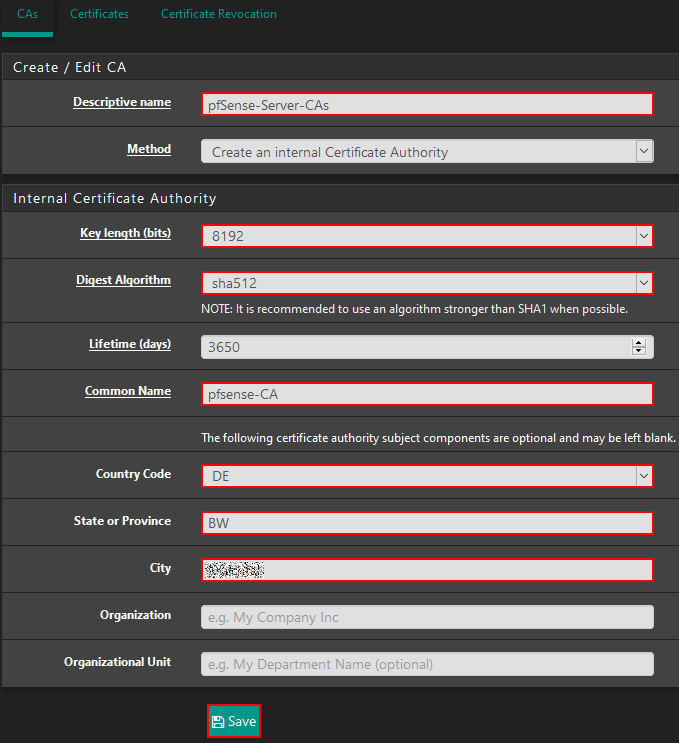
Klicken Sie unter System -> Cert.Manager -> CAs auf «Add».

pfSense OpenVPN Server

«Descriptive name»: Geben Sie einen beliebigen Namen für die Beschreibung an.

«Method»: Wählen Sie hier «Create an internal Certificate Authority» aus, um ein neues Zertifikat zu erstellen.

«Key length (bits): Hier können Sie die Key Länge des Zertifikats auswählen. Es sollte mindestens 4096 ausgewählt werden. Wir empfehlen 8192!

«Digest Algorithm»: Hier wählen Sie den Verschlüsselungs Algorithmus aus. Es kann ohne Probleme der höchste Wert, also «sha512» verwendet werden.

«Lifetime (days): Dieser Wert kann beim Standard belassen werden.

«Common Name»: Hier können Sie einen beliebigen Namen (ohne Leer- und Sonderzeichen oder Zahlen außer «-«) für das Zertifikat angeben.

«Country Code»: Wählen Sie Ihren Ländercode aus.

«State or Province»: Geben Sie Ihr Bundesland/Kanton an.

«City»: Geben Sie Ihre Stadt an.

«Organization»: Dieses Feld kann leer-gelassen werden.

«Organizational Unit»: Dieses Feld kann leer-gelassen werden.

Anschließend müssen Sie auf «Save» klicken, um das Zertifikat generieren zu lassen. Dies kann bis zu 5 Minuten dauern.

Server Zertifikat erstellen

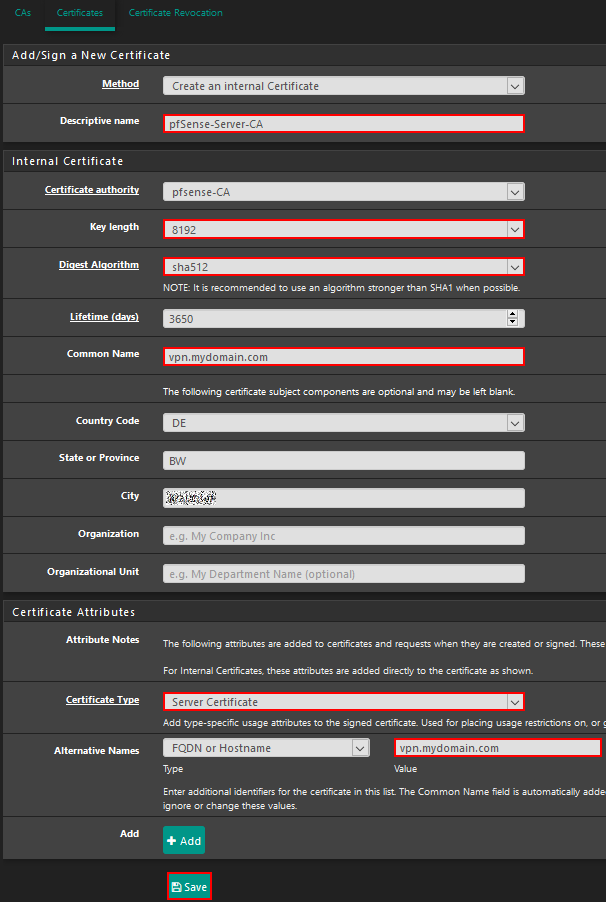
Klicken Sie unter System -> Cert.Manager -> Certificates auf «Add/Sign».

pfSense OpenVPN Server

«Method»: Belassen Sie hier die Auswahl auf «Create an internal Certificate».

«Descriptive Name»: Geben Sie hier einen Namen Ihrere Wahl an.

«Certificate authority»: Wählen Sie hier die zuvor erstellte CA aus.

«Key length»: Hier können Sie wieder die Key Länge des Zertifikats auswählen. Es sollte mindestens 4096 ausgewählt werden. Wir empfehlen 8192!

«Digest Algorithm»: Hier wählen Sie wieder den Verschlüsselungsalgorithmus aus. Es kann ohne Probleme der höchste Wert, also «sha512» verwendet werden.

«Lifetime (days)»: Dieser Wert kann wieder bei 3650 belassen werden.

«Common Name»: Hier können Sie ihre Domain oder IP Addresse angeben, die auf den pfSense Server verweist.

«Country Code, State or Province, City, Organization und Organizational Unit»: Diese Werte können Sie gleich wie im ersten Schritt ausfüllen.

«Certificate Type»: Hier müssen Sie «Server Certificate» auswählen.

«Alternative Names»: Geben Sie hier bei der Auswahl «FQDN or Hostname» ihre Domain an, die auf die pfSense verweist.

Sie haben keine Domain? Dann wählen Sie unter «Type» «IP address» aus. Dann können Sie auch Ihre Public-IP angeben.

Klicken Sie anschließend auf «Save».

User und User-Cert anlegen

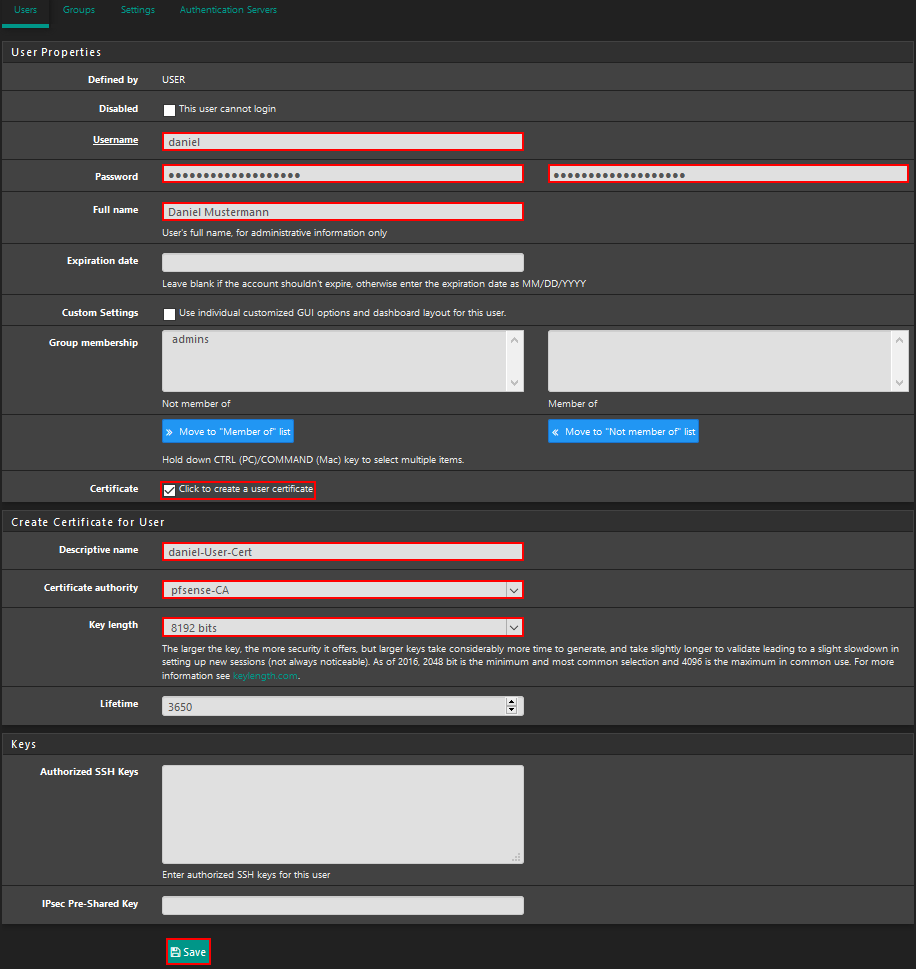
Klicken Sie unter System -> User Manager -> Users auf «Add».

pfSense OpenVPN Server

«Disabled»: Hier können Sie festlegen, ob sich der Benutzer an der pfSense Weboberfläche und am VPN anmelden kann. Wenn dieses Feld angehakt ist, wird dem Benutzer beim Versuch einer Verbindung einen «User authentication Error» erhalten.

«Username»: Geben Sie hier den gewünschten Benutzernamen an.

«Password»: Geben Sie hier das Passwort für den Benutzer an.

«Full name»: Hier können Sie den vollen Namen des Benutzers angeben. Allerdings ist dies kein Pflichtfeld.

«Expiration date»: Hier können Sie einen Zeitraum festlegen, ob und wann der Benutzer deaktiviert werden soll.

Die Felder «Custom Settings» und «Group membership» müssen nicht geändert werden. Wir belassen diese auf den Standardwerten.

«Click to create a user certificate»: Dieses Feld muss ausgewählt werden, da wir so direkt für diesen Benutzer ein Zertifikat erstellen können.

«Descriptive name»: Hier müssen Sie wieder einen Namen Ihrer Wahl für das Zertifikat eintragen.

«Certificate authority»: Hier müssen Sie wieder die gerade erstellte pfSense Authority auswählen.

«Key length»: Die Key Länge können Sie wie bei den anderen Zertifikaten frei wählen. Höher ist immer besser, dauert jedoch länger beim erzeugen und verbinden.

Die restlichen Felder belassen wir bei den Standards.

pfSense OpenVPN Server erstellen

Klicken Sie unter VPN -> OpenVPN -> Servers -> Add

pfSense OpenVPN Server

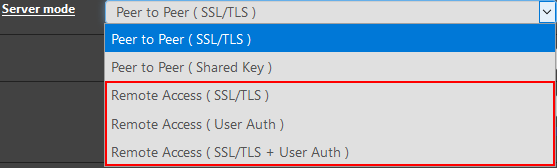
Bei «Server mode» stehen verschiedene Möglichkeiten zur Auswahl.
Diese Unterscheiden sich in folgenden Punkten

«Remote Access (SSL/TLS)» für die Authentifizierung wird nur die Zertifikats-Datei benötigt. Der Benutzer muss sich nicht mit einem Namen und Kennwort anmelden. Diese Methode ist, wenn man die Zertifikats-Datei sicher teilt und aufbewahrt, ziemlich sicher, da es unrealistisch ist, dass ein Angreifer einen 8192 Zeichen langen Key errät.

«Remote Access (User Auth)» Hier gibt es keine Zertifikats-Datei. Der User loggt sich nur mit Benutzername und Passwort in das VPN-Netzwerk ein. Diese Methode können wir nicht empfehlen, da es einfach(er) ist, das Passwort zu erraten.

«Remote Access (SSL/TLS + User Auth)» Dies ist die sicherste Methode, sich mit dem VPN zu verbinden. Hier wird neben der Zertifikats-Datei auch noch ein Benutzername und ein Passwort abgefragt.

Wählen Sie die Methode, die Ihnen am meisten zusagt. Wir fahren mit «Remote Access (SSL/TLS + User Auth)» fort.

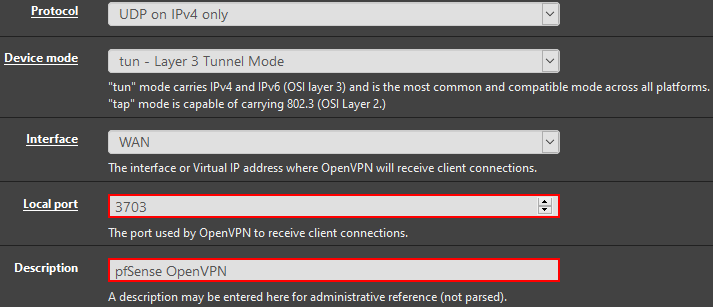
«Protocol» und «Device mode» können Sie bei den Standard Werten belassen.

«Interface» muss auf «WAN» festgelegt werden.

Bei «Local port» muss der Port angegeben werden, mit dem die VPN-Verbindung aufgebaut wird. Standard ist hier «1194». Wir ändern diesen ab, da dies eine höhere Sicherheit verspricht.
Suchen Sie sich einen Port aus, der nach Möglichkeit nicht auf der Liste der Standardisierten Ports steht.

«Description»: Hier sollten Sie zur Identifikation des Servers eine treffende Beschreibung angeben.

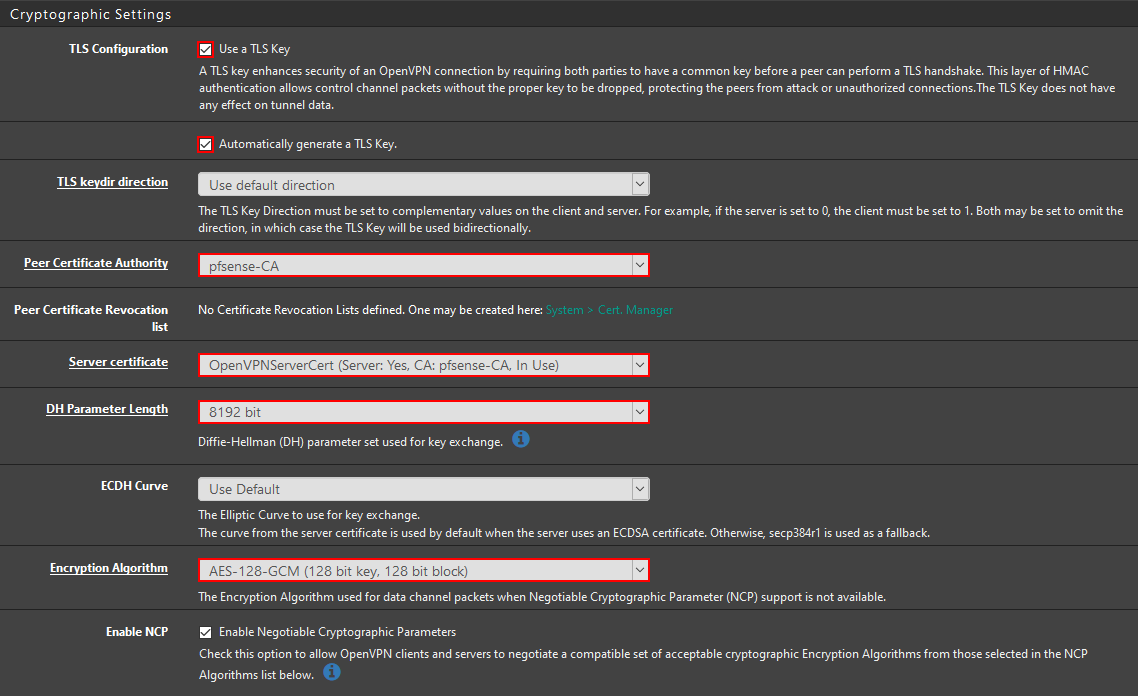
Unter «Cryptographic Settings» muss der Haken bei «Use a TLS Key» und bei «Automatically generate a TLS Key.» gesetzt sein. So wird beim erstellen des Servers automatisch ein TLS-Cert generiert.

Die Werte und Haken für «TLS keydir direction», «Peer Certificate Revocation list», «ECDH Curve» und «Enable NCP» belassen wir bei den Standard-Werten.

Unter «Peer Certificate Authority» müssen Sie wieder Ihre im ersten Schritt erstellte CA angeben.

Bei «Server certificate» muss das eben erstellte Server-Zertifikat ausgewählt werden. Bitte beachten Sie hier, dass Sie nicht das Benutzer-Zertifikat auswählen.

Die «DH Parameter Length» setzen wir auf den höchst-möglichen Wert, also «8192 bit».

Für den Wert «Encryption Algorithm» muss man erwähnen, dass in einem Test von uns MacBooks mit Tunnelblick nicht authentifizieren konnte, trotz das die OpenSSL Version auf 5.0.0 gestellt wurde. Als kompatibelster Wert erwies sich bei uns «AES-128-GCM». Wenn Sie kein MacBook verwenden, können Sie auch «AES-256-GCM» verwenden. In unserem Test konnten sich iPhone und Windows Geräte mit OpenVPN Software authentifizieren.

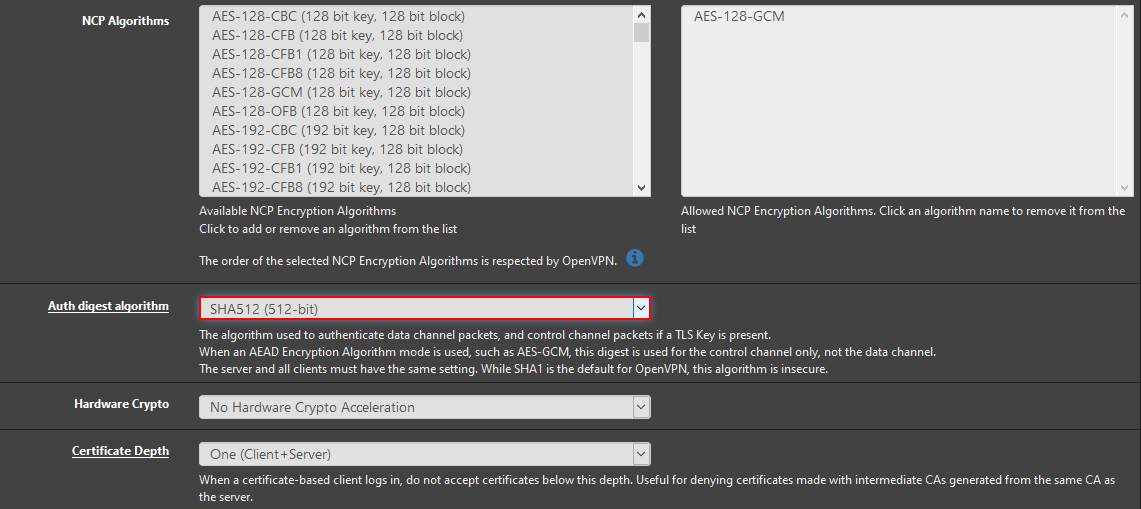
Die restlichen Werte belassen wir wieder bei den Standards, bis auf «Auth digest algorithm». Diese können Sie ohne Probleme auf den höchst möglichen Wert setzen.

Im nächsten Abschnitt «Tunnel Settings» aktivieren wir zuerst die Haken «Redirect IPv4 Gateway» und «Redirect IPv6 Gateway». So wird der gesamte Client-Verkehr durch die VPN-Verbindung geroutet.

Für das Feld «IPv4 Tunnel Network» müssen sie eine IP mit Subnetzmaske angeben also «X.X.X.X/xx». In unserem Beispiel also «10.1.1.1/24». Dieses Netz liegt nicht innerhalb eines anderen Interface und ist somit ein extra Netzwerk, dass (erst einmal) nichts mit den anderen zu tun hat.

«Compression» muss auf «Omit Preference (Use OpenVPN Default)» gestellt sein.

Außerdem muss noch der Haken bei «Inter-client communication» gesetzt werden.

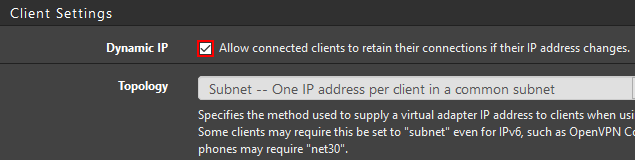
Unter «Client Settings» muss nur der «Dynamic IP» Haken gesetzt werden.

Alle Einstellungen innerhalb des Abschnitt «Ping settings» müssen nicht verändert werden.

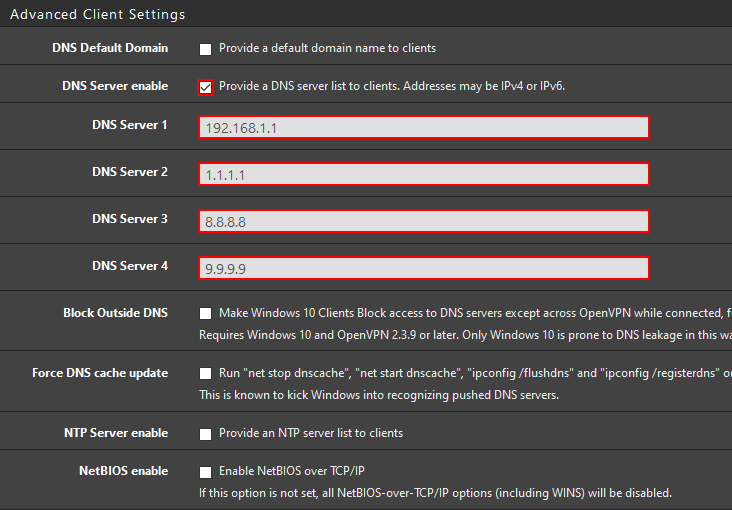
Nun müssen wir die DNS-Einstellungen für den pfSense OpenVPN Server konfigurieren. Als Erstes muss der Haken bei «DNS-Server enable» gesetzt werden.

Wenn du auf deiner pfSense einen DNS-Server konfiguriert hast, kannst du als DNS-Server die Gateway IP (bzw. die IP deiner pfSense) eintragen.
Die restlichen DNS-Server füllen wir mit 1.1.1.1 (Cloudflare), 8.8.8.8 (Google DNS) und 9.9.9.9 (Quad9)

Im letzten Abschnitt «Advanced Configuration» müssen wir keine Änderungen vornehmen.

Nun müssen Sie auf «Save» klicken. Damit ist die Konfiguration des pfSense OpenVPN Server abgeschlossen. Jetzt muss nur noch die Client Konfiguration vorgenommen werden.

OpenVPN Clients konfigurieren

Um Clients ganz einfach konfigurieren zu können, ist es am einfachsten, wenn man sich das Paket «openvpn-client-export» installiert. Mit diesem ist es sehr einfach .ovpn Files für verschiedene Endgeräte zu konfigurieren.

Um das Paket zu installieren, suchen wir nach ihm unter System -> Package Manager -> Available Packages.

Dort klicken wir dann einfach auf «Install».

Nach der Installation des Pakets können wir unter VPN -> OpenVPN -> Client Export die Konfiguration aufrufen.

Ganz am Ende der Seite wird Ihnen dieses Fenster angezeigt. Hier werden alle User aufgelistet, die Sie eingerichtet haben.

Nach mehreren Tests von uns wird die «Most Clients» Konfigurationsdatei für die meisten Endgeräte am besten funktionieren.

by admin | Posted in EDV Ecke | Kommentare deaktiviert für pfSense OpenVPN Server und User einrichten – Tutorial |
Oktober 26th, 2021

How To Increase Size Limit Of Your PST And OST Files In Outlook?

By default, starting from the Outlook 2010 version desktop application is able to open .pst files and create .ost which size is not more than 50 GB. If you try to open the .pst file which is more than 50 GB in size, you will receive the following error:

Error

In order to increase the maximum size of the .pst and .ost files that your Outlook can open or create you will need to add or modify the following registry entries:

  • The MaxLargeFileSize registry entry (default value is 51,200 MB (50 GB)) 
  • The WarnLargeFileSize registry entry (default value is 48,640 MB (47.5 GB))

The MaxLargeFileSize determines the absolute maximum size that both the .pst and the .ost files can grow to. After this maximum size is reached, Outlook does not permit the size of the file to grow beyond this size.

The WarnLargeFileSize determines the maximum data that both the .pst and the .ost files can have. After this maximum data is reached, neither the .pst nor the .ost files are permitted to add any more data. However, the size of the physical file may still increase because of internal processes.

Important: it is recommended that the values between the MaxLargeFileSize registry entry and the WarnLargeFileSize registry entry be at least 5 percent (%) so that internal processes are not hindered from continuing.

These settings apply to both .ost and .pst files. If you modify these registry values, this can affect .ost files that are used with Cached Exchange Mode, with AutoArchive, and with .pst. files. If Outlook is configured to download shared folders, the contents of shared folders are stored in the local Offline Outlook Data (.ost) file. If the shared folders contain many items or large attachments, the size of the .ost file may grow significantly.

In order to modify registry entries, follow these steps:

  1. Click Start, and then click Run, type Regedit, and then click OK.
  2. Navigate to HKEY_CURRENT_USER\Software\Microsoft\Office\x.0\Outlook\PST (x.0 corresponds to the Outlook version: 16.0 = Outlook 2016, 15.0 = Outlook 2013, 14.0 = Outlook 2010)
  3. Click PST, and then right-click MaxLargeFileSize in the right pane.
  4. Click Modify, and then type the value in the Value data
  5. Click OK.
  6. Right-click WarnLargeFileSize, and repeat steps 4 through 5.

Note: you may have to create the registry values if they do not exist. If the registry values do not exist, follow these steps to create them:

  1. Click Start, click Run, type Regedit, and then click OK.
  2. Navigate to HKEY_CURRENT_USER\Software\Microsoft\Office\x.0\Outlook (x.0 corresponds to the Outlook version: 16.0 = Outlook 2016, 15.0 = Outlook 2013, 14.0 = Outlook 2010)
  3. Right-click Outlook, point to New, and then click Key.
    PST
  4. Type PST, and then press ENTER.
    PST 2
  5. Right-click PST, point to New and then click DWORD
    DWORD
  6. Type MaxLargeFileSize, and then press ENTER
  7. In the Edit DWORD Value window, choose Decimal and type the value in the Value data box, and then click OK.
    Value
  8. Repeat steps 5 through 7 to create another DWORD WarnLargeFileSize, and then close the registry.

Value for registry entries should be set in either bytes or megabytes and you will need to calculate it first. You can find predefined values for 100 GB and 95 GB below:

 MaxLargeFileSize should be 100 GB = 102400 MB

 WarnLargeFileSize should be 95 GB = 97280 MB

Notes:

  • Despite the fact that you will be able to open .pst files that are larger than 50GB after making specified registry changes, it can still significantly decrease the performance of your Outlook application.
  • We don’t recommend increasing it to more than 100GB due to the nature of our shared environment.

In old Outlook data file types, the entries MaxFileSize and WarnFileSize were in use. Values under MaxFileSize and WarnFileSize have been used for the old-type ANSI format (an earlier Microsoft Outlook format) data files. The ANSI values are set in byte increments. Please note that since Outlook 2003 version the datafiles are in new UNICODE formats as ANSI format supports 2 GB data file maximum.

The MaxFileSize registry entry (default value is 2,075,149,312 bytes (1.933 GB)) 
The WarnFileSize registry entry  (default value is 1,950,368,768 bytes (1.816 GB))

If the old-type ANSI data file is in use please consider importing this .pst in the new profile. The old type data file has „Outlook Data File (97-2002)“ in the format of the file. If the value of the MaxFileSize registry entry ever exceeds the ANSI 2 gigabyte (GB) limit on either the .pst or the .ost files, the value will be ignored to limit the size to 2 GB to prevent corruption.

by admin | Posted in Office | Kommentare deaktiviert für How To Increase Size Limit Of Your PST And OST Files In Outlook? |
Oktober 11th, 2021

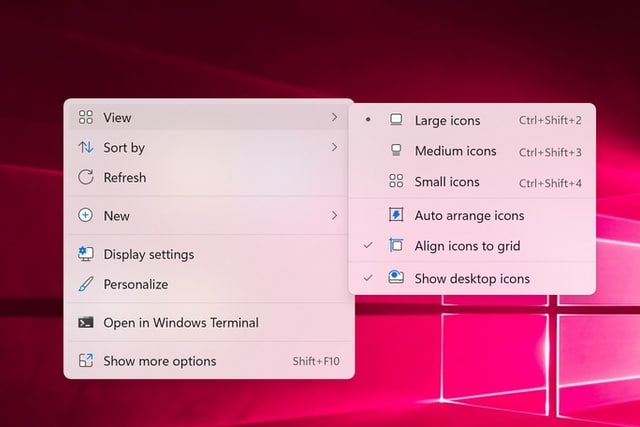
This registry hack lets you restore the old right-click context menus in Windows 11

Windows 11 context menu

Microsoft has made many changes in the move from Windows 10 to Windows 11, and not all of them have proved popular. One of the more controversial changes — at least aesthetically speaking — is the new-look context menu.

The menu that appears when you right-click on files, folders and the desktop has been given a revamp in Windows 11 and not everyone is happy with it. If you prefer things the way they used to be, there’s a registry hack you can use to tame the context menu.

While some people love the new look, others are less than keen on the fact that the menu is now bigger than before without giving access to any new options. Depending on what you right-click on, some options have been reduced to unlabelled icons, and this has caused a good deal of confusion.

If you are one of those who prefers the way the context menu looked in Windows 10, use the following registry tweak to change the style.

  1. Press the Windows key and R to activate the Run dialog
  2. Type regedit and press Enter to launch the Registry Editor
  3. Navigate to HKEY_CURRENT_USER \ Software \ Classes \ CLSID
  4. Click Edit > New > Key and create a new key called {86ca1aa0-34aa-4e8b-a509-50c905bae2a2}
  5. With the new key selected, click Edit > New > Key and create a new key called InprocServer32
  6. Select the newly created key and then double click the Default entry in the right-hand pane
  7. Do not type anything, but press Enter (you should notice that the data column changes from (value not set) to simply being blank
  8. Either restart your computer, or just restart the explorer.exe process

When you right-click, you should now see a context menu that looks more like it did in Windows 10.

by admin | Posted in EDV Ecke, Windows | Kommentare deaktiviert für This registry hack lets you restore the old right-click context menus in Windows 11 |
Oktober 8th, 2021

How to Disable VBS and Speed Up Windows 11

Virtualization-based security, aka VBS, allows Windows 11 to create a secure memory enclave that’s isolated from unsafe code. Another built-in feature called Hypervisor-Enforced Code Integrity (HVCI) uses the capabilities of VBS to prevent unsigned or questionable drivers and software from getting into memory. Together VBS and HVCI add a layer of protection that limits how much damage malware can do, even if it gets past your antivirus software. 


Unfortunately, VBS and HVCI have a significant performance cost, particularly when it comes to gaming. In our tests, we found that games ran as much as 5 percent slower with these settings on as with them off. Others have seen even bigger deltas; our colleagues at PC Gamer saw drops of 25 percent, though they tested with a 10th Gen Intel CPU when Microsoft recommends no less than an 11th processor.


Simply upgrading to Windows 11 will not turn on VBS, unless you already had it enabled in Windows 10, where it has been a non-default option for several years. So, at the moment, this is a problem few people will actually have.


However, if you do a clean install of Windows 11 or buy a brand new laptop or desktop with Windows 11, you may have VBS / HVCI enabled by default. Microsoft recommends that OEMS have it enabled by default but notes that „some devices that are especially sensitive to performance (e.g. gaming PCs) may choose to ship with HVCI disabled.“ And we know of at least one OEM, MSI, who told us that they would ship their systems with VBS disabled.


If you’re using Windows 11 and performance, particularly gaming performance, matters most to you, we’ll show you how to check to see if VBS / HVCI is enabled and how to turn it off. However, if you’re not gaming, you may want to leave the security in place.

How to Check if VBS is Enabled in Windows 11


Before you start thinking about turning off VBS, you need to find out if it’s on in the first place. 


1. Open system information. The easiest way to do that is by searching for „system information“ in Windows search and clicking the top result.


open system information

(Image credit: Future)
 

2. Scroll down to find the „Virtualization-based security“ row. If it says „running,“ VBS is enabled. But if it says „not enabled,“ then you’re done.


System information

(Image credit: Future)

How to Disable VBS / HVCI in Windows 11


1. Search for Core Isolation in Windows search and click the top result.


search for core isolation

(Image credit: Future)
Advertisement

2. Click Windows Security and Ok if asked what app to use. A submenu opens.


click Windows Security

(Image credit: Future)
 

3. Toggle Memory Integrity to off, if it was on. If it is not on, skip ahead to step 6.


toggle memory integrity to off

(Image credit: Future)
 

4. Reboot your PC as prompted..


reboot

(Image credit: Future)
Advertisement

5. Check system info again to see if virtualization-based security is listed as „not enabled.“ If so, you are done. If not, go to step 6 where you’ll disable VBS in the registry.


check system info again

(Image credit: Future)
 

6. Open regedit. The easiest way is by hitting Windows + R, entering regedit in the text box and click Ok.


open regedit

(Image credit: Future)
 

7. Navigate to HKEY_LOCAL_MACHINE\System\CurrentControlSet\Control\DeviceGuard.


navigate to the registry key

(Image credit: Future)
Advertisement

8. Open EnableVirtualizationBasedSecurity and set it to 0.


Open EnableVirtualizationBasedSecurity and set it to 0

(Image credit: Future)
 

9. Close regedit and reboot your PC.


At this point, you should see that VBS is disabled in the system info app.

by admin | Posted in EDV Ecke, Windows | Kommentare deaktiviert für How to Disable VBS and Speed Up Windows 11 |
April 10th, 2021

Migration Domain Controller zu Server 2016/19

ch habe nun schon einige Mails bezüglich der Migration von Domain Controllern erhalten, die noch mit einem älteren Betriebssystem laufen. In den meisten Mails geht es darum, die IP-Adresse des ursprünglichen Domain Controllers beizubehalten.


Die Umgebungen, die in den Mails geschildert wurden, waren alle samt ähnlich, nur das Betriebssystem auf dem der ursprüngliche Domain Controller läuft variiert. In den meisten Fällen gab es nur einen Domain Controller der auf Windows Server 2008 läuft und nun durch Windows Server 2016 ersetzt werden soll. In einem Fall gab es sogar noch einen Domain Controller der auf Server 2003 läuft.

Es ist natürlich nicht empfohlen nur einen Domain Controller zu betreiben, allerdings lassen manch kleine Umgebungen auch nichts anderes zu.

Dieser Artikel widmet sich der Migration eines Active Directory mit nur einem Domain Controller basierend auf Server 2008 zu Server 2016 inklusive der Beibehaltung der ursprünglichen IP des Server 2008 DCs.

Server 2003 ist hier außen vor, kann aber mittels der gleichen Methode zunächst zu Server 2008 und danach von Server 2008 zu Server 2016 migriert werden. Eine direkte Migration von Server 2003 zu Server 2016 DCs ist nicht möglich.

Die Umgebung

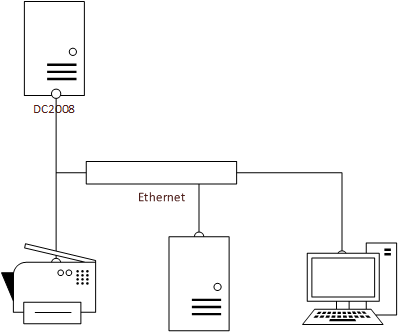
Für diesen Artikel habe ich deine Testumgebung erzeugt, die wie folgt aufgebaut ist:

Migration Domain Controller zu Server 2016

Es gibt einen Windows Server 2008 Domain Controller mit der statischen IP 172.16.100.10 und dem Namen DC2008. Im Netzwerk gibt es weitere Clients, welche den Domain Controller als DNS Server nutzen. Der Name des Active Directory lautet frankysweb.local.

Es wurde ein neuer Windows Server 2016 mit dem Namen DC2016 und der IP 172.16.100.20 installiert. Der Server ist bisher nur Mitglied des Active Directory und nutzt ebenfalls DC2008 als DNS Server. Nach Abschluss der Migration soll der neue Server wieder die IP 172.16.100.10 bekommen.

Neuen Domain Controller installieren

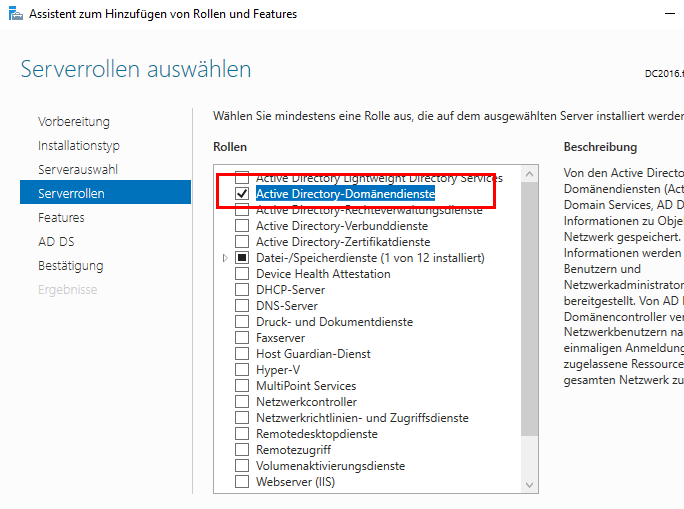
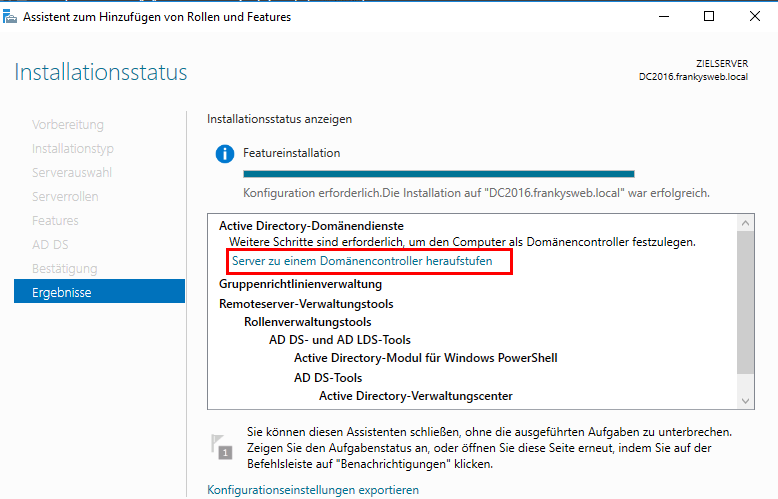
Zunächst muss die Rolle “Active Directory-Domänendienste” auf DC2016 installiert werden, bevor DC2016 zum Domain Controller hochgestuft werden kann:

Migration Domain Controller zu Server 2016

Für die Zeit der Migration von DC2008 zu DC2016 werden also zwei Domain Controller laufen.

Nachdem die Rolle installiert wurde, kann DC2016 direkt zum DC hochgestuft werden:

Migration Domain Controller zu Server 2016

Die Standardeinstellungen können so belassen werden:

Migration Domain Controller zu Server 2016

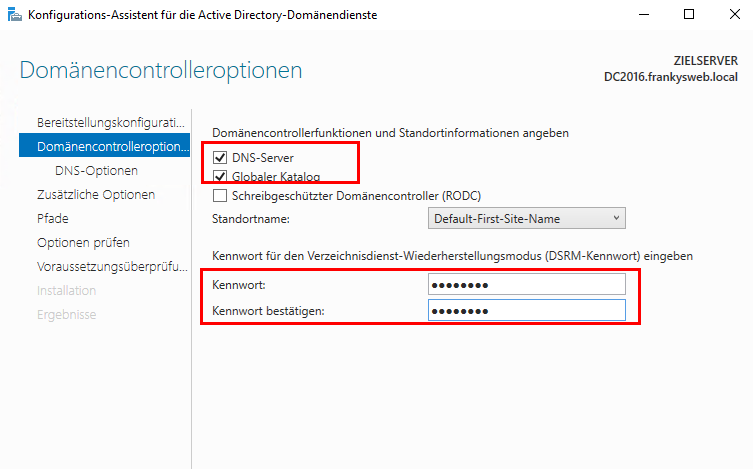
Auch im nächsten Dialog muss nur das Kennwort für den Wiederherstellungsmodus gesetzt werden, die Häkchen bei “DNS-Server” und “Globaler Katalog” bleiben gesetzt:

Migration Domain Controller zu Server 2016

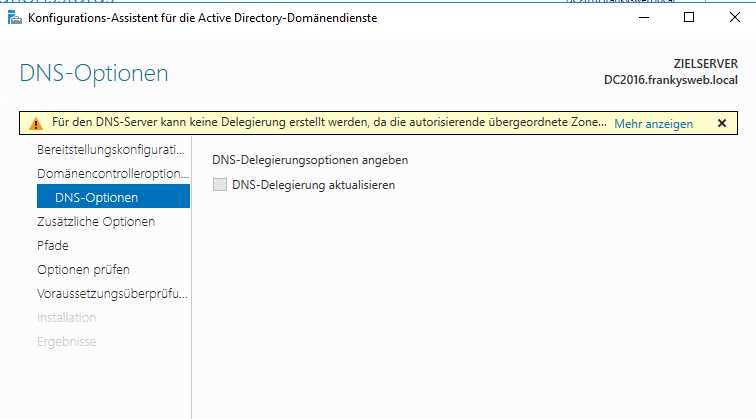
Eine Delegierung wird in den meisten kleinen Umgebungen nicht benötigt, daher kann die Warnung ignoriert werden:

Migration Domain Controller zu Server 2016

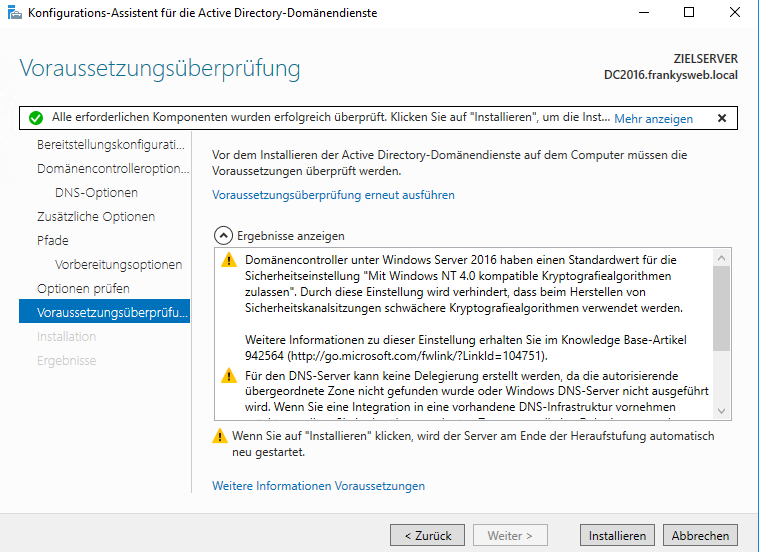
Die weiteren Dialoge können alle mit “Weiter” bestätigt werden. Im letzten Dialog wird noch eine Zusammenfassung mit zwei Warnungen angezeigt. In diesem Fall sind die beiden Warnungen als Hinweise anzusehen:

Migration Domain Controller zu Server 2016

  • Es kann keine Delegierung für den übergeordneten DNS Server erstellt werden –> wird hier nicht benötigt
  • NT4 Clients können sich nicht mehr verbinden –> wird ebenfalls nicht mehr benötigt

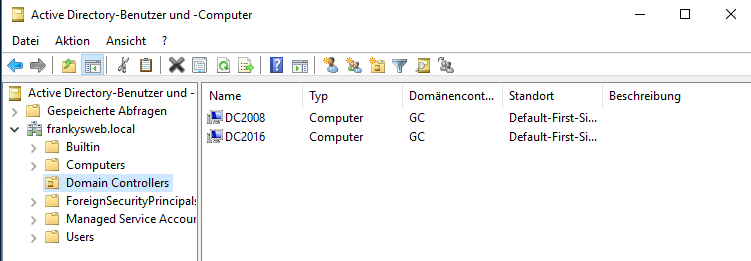
Nachdem DC2016 automatisch neu gestartet wurde, gibt es nun also zwei Domain Controller für die Domain frankysweb.local:

Migration Domain Controller zu Server 2016

Jetzt sollten noch die Ereignis Protokolle durchgesehen werden, ob es zu Fehlern bei der Replikation gekommen ist. Zum Test kann auch ein neues Benutzerkonto angelegt und dann geprüft werden, ob es auf beiden DCs angezeigt wird. Wenn die Replikation funktioniert, kann es weitergehen.

FSMO Rollen verschieben

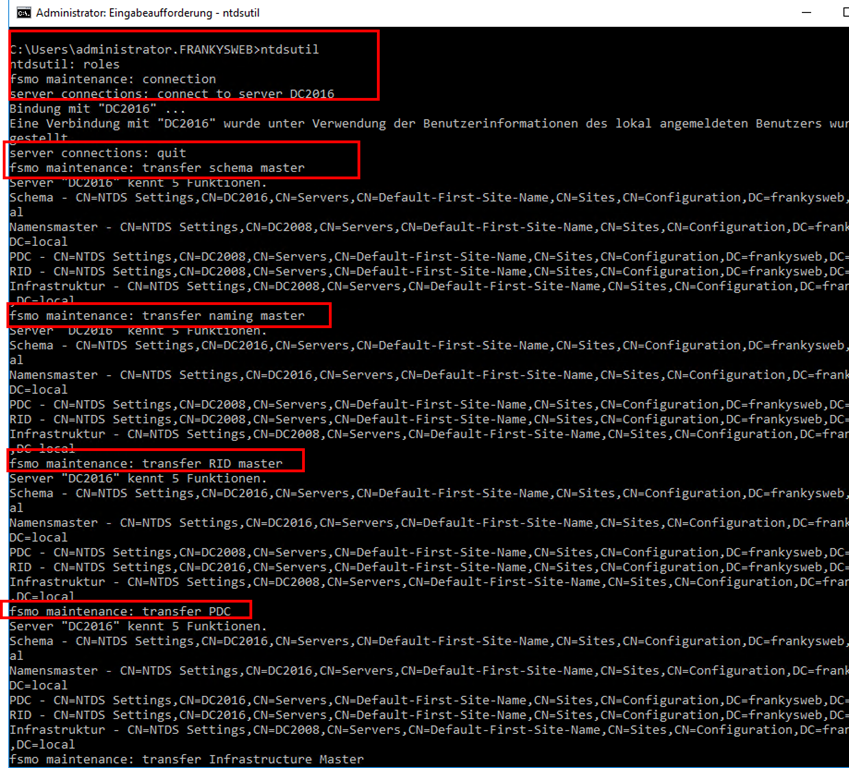
Das Verschieben der FSMO Rollen von DC2008 zu DC2016 funktioniert am einfachsten per Command Line und dem Tool “ntdsutil”. Die folgenden Befehle können genutzt werden um alle FSMO Rollen von DC2008 zu DC2016 zu verschieben (Hinweis: Die Verbindung wird zu DC2016 aufgebaut):

1
2
3
4
5
6
7
8
9
roles
connection
connect to server DC2016
quit
transfer schema master
transfer naming master
transfer RID master
transfer PDC
transfer Infrastructure Master

Die Abfragen müssen dann mit “OK” bestätigt werden.

Migration Domain Controller zu Server 2016

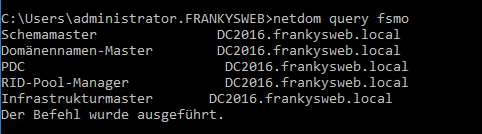
mit dem Befehl “netdom query fsmo” kann überprüft werden, ob alle FSMO Rollen verschoben wurden:

Migration Domain Controller zu Server 2016

Wenn dies erfolgt ist, kann es mit dem nächsten Schritt weitergehen.

Alten Domain Controller entfernen

Ab jetzt ist etwas Downtime nötig. Der alte Domain Controller wird entfernt und damit auch der alte DNS Server. Alle Clients/Server die ausschließlich die IP 172.16.100.10 (von DC2008) als DNS-Server konfiguriert haben, können den neuen Domain Controller nicht via DNS finden. Dieser Schritt sollte also in einem Wartungsfenster erfolgen.

Um eine Downtime zu vermeiden kann auch einfach der neue Server als primärer DNS Server eingestellt werden, wenn dies auf allen Clients erfolgt, muss natürlich auch nicht die IP-Adresse des neuen Domain Controllers geändert werden. Hier geht es nun aber genau um den Fall dass der neue Server die IP des alten Servers erben soll. Daher weiter im Text.

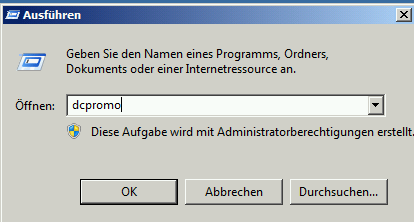
DC2008 wird nun runtergestuft, dies funktioniert mit dem Befehl “dcpromo”:


Migration Domain Controller zu Server 2016

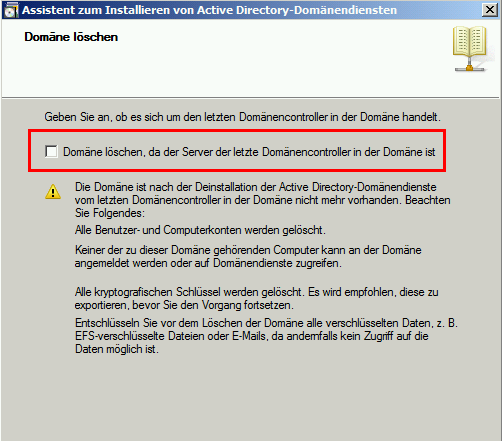
Es öffnet sich der Dialog zum entfernen des Domain Controllers. Das Häkchen bei “Domäne löschen, da dies der letzte Domänencontroller in der Domäne ist” darf NICHT gesetzt werden:

Migration Domain Controller zu Server 2016

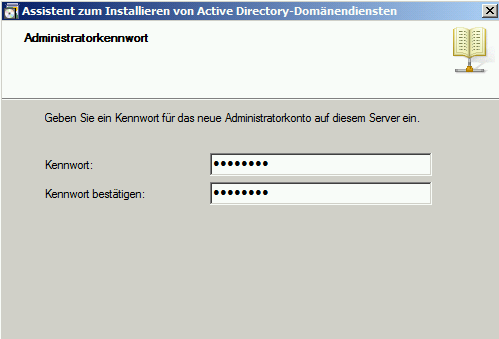
Im darauffolgenden Dialog muss ein neues lokales Administrator Kennwort angegeben werden:

Migration Domain Controller zu Server 2016

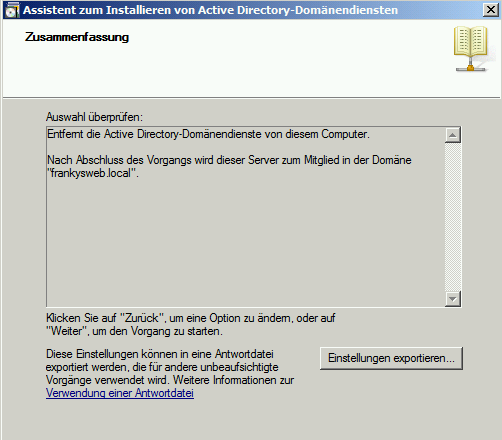
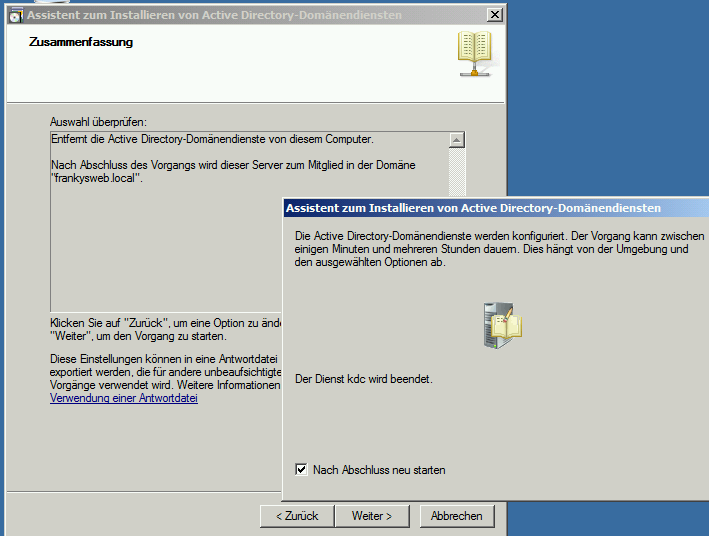
Die Zusammenfassung kann bestätigt werden:

Migration Domain Controller zu Server 2016

Die Domain Controller Rolle wird nun von DC2008 entfernt und der Server kann neu gestartet werden.

Migration Domain Controller zu Server 2016

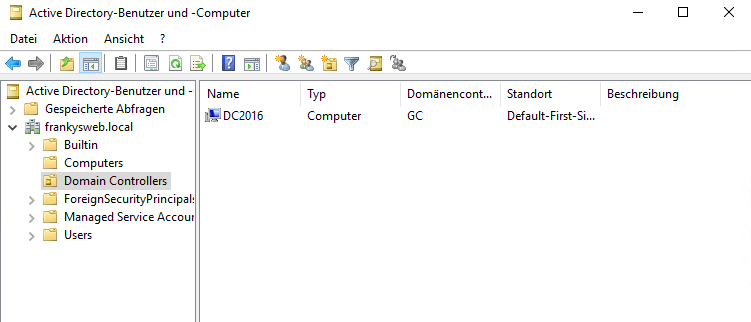
Nachdem DC2008 neu gestartet wurde, gibt es in der OU “Domain Controllers” nur noch das Computerkonto von DC2016:

Migration Domain Controller zu Server 2016

DC2008 kann nach dem Neustart runtergefahren werden, somit ist die IP Adresse frei und kann gleich dem neuen Domain Controller zugeordnet werden. Vorher sind allerdings noch ein paar Aufräumarbeiten nötig.

Aufräumarbeiten

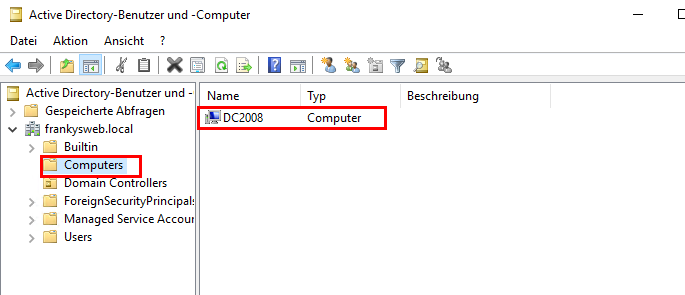
Das alte Computer Konto von DC2008 findet sich nun in der OU “Computers” und kann hier gelöscht werden:

Migration Domain Controller zu Server 2016

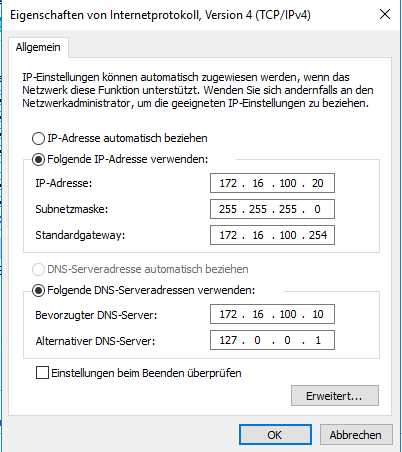
Die DNS Einstellung der Netzwerkkarte auf DC2016 kann nun korrigiert werden, hier ist noch die IP von DC2008 eingetragen:

Migration Domain Controller zu Server 2016

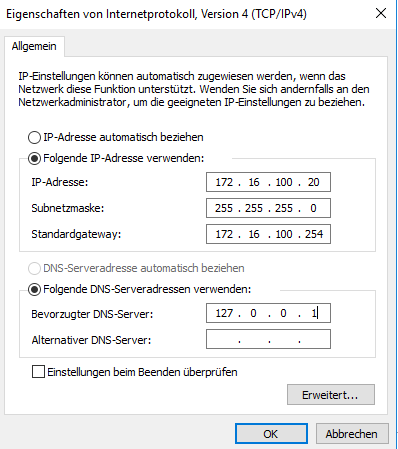
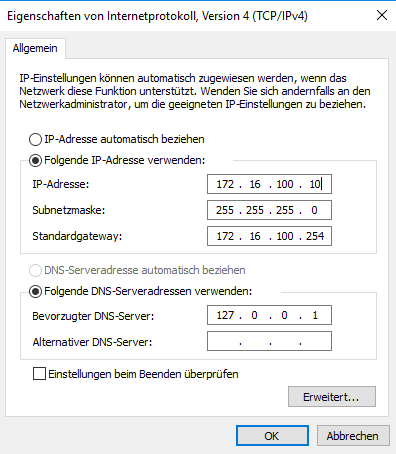
Hier wird nun als DNS Server 127.0.0.1 verwendet. Es ist hier übrigens wenig sinnvoll einen Router oder öffentlichen DNS Server ans Sekundären DNS Server einzutragen, da diese in der Regel nicht die Zonen für das lokale Active Directory auflösen können. In Umgebungen mit nur einem DC steht hier also nur 127.0.0.1:

Migration Domain Controller zu Server 2016

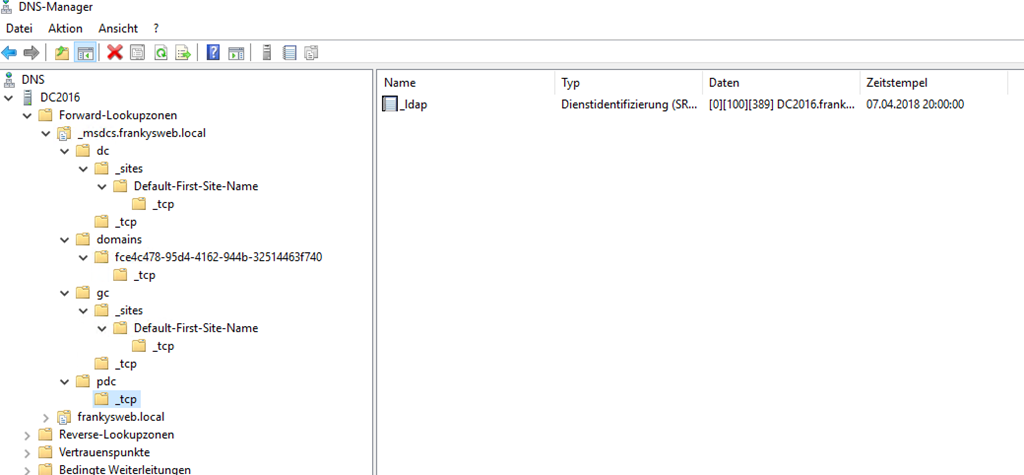
Im DNS-Manager müssen nun einmal alle Zonen und Subzonen durchgesehen werden, hier bleiben oft Leichen des alten Domain Controllers zurück. Hier können anhand der alten IP / Hostnamen Leichen erkannt und gelöscht werden:

Migration Domain Controller zu Server 2016

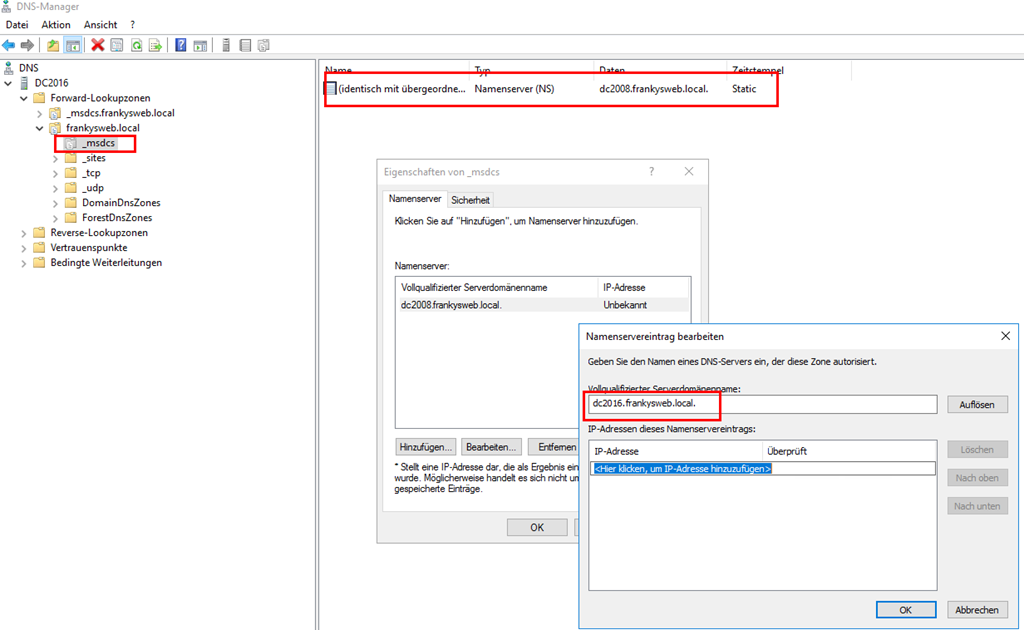
Die delegierte Zone “_msdcs” hat ebenfalls noch einen alten Nameserver Eintrag, dieser muss ebenfalls korrigiert werden:

Migration Domain Controller zu Server 2016

Hier ist mal ein Beispiel für eine Leiche, die bei mir nicht gelöscht wurde:

Migration Domain Controller zu Server 2016

Wie gesagt, geht alle Zonen und Subzonen einmal durch und schaut nach alten Einträgen, irgendwo bleibt immer etwas zurück. Auch die Reverse Zone nicht vergessen.

IP Adresse des DCs ändern

Das Ändern der IP Adresse ist nun kein Hexenwerk mehr. Zuerst wird die IP von DC2008 auf DC2016 konfiguriert:

Migration Domain Controller zu Server 2016

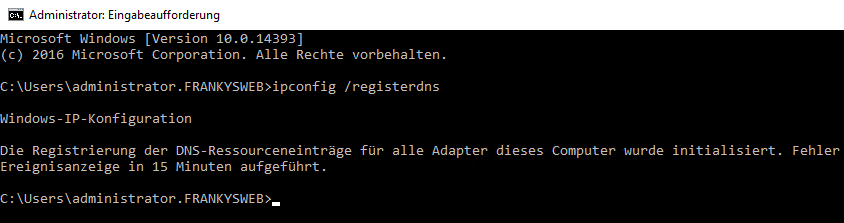
Danach folgt ein “ipconfig /registerdns”:

Migration Domain Controller zu Server 2016

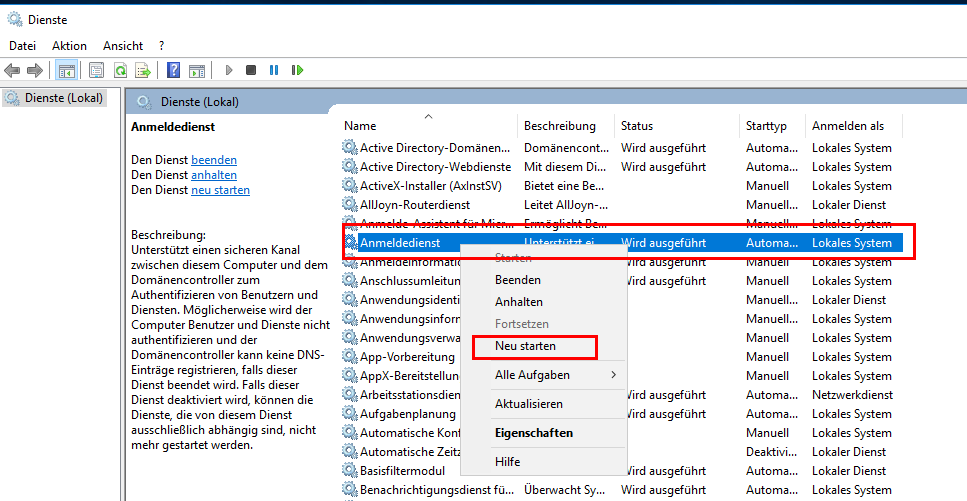
Dann wird der Anmeldedienst neu gestartet:

Migration Domain Controller zu Server 2016

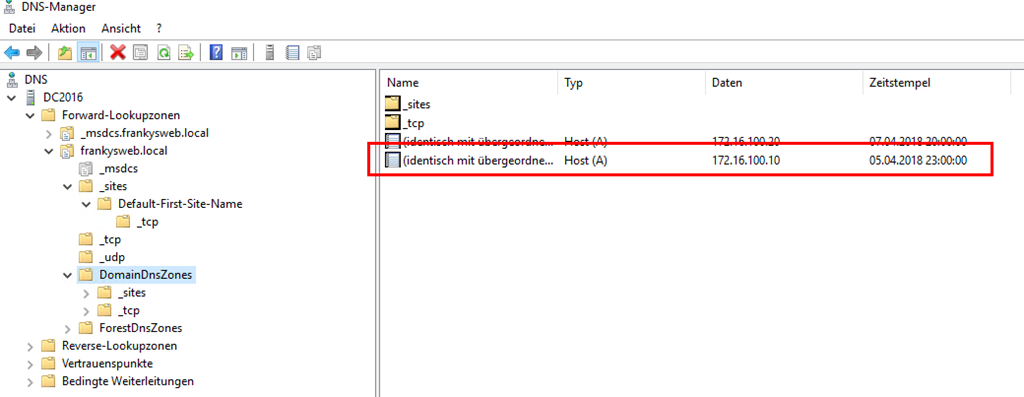
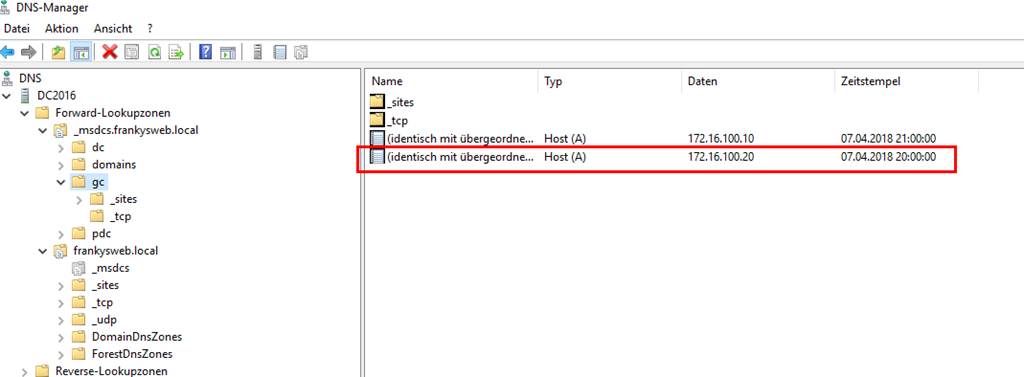
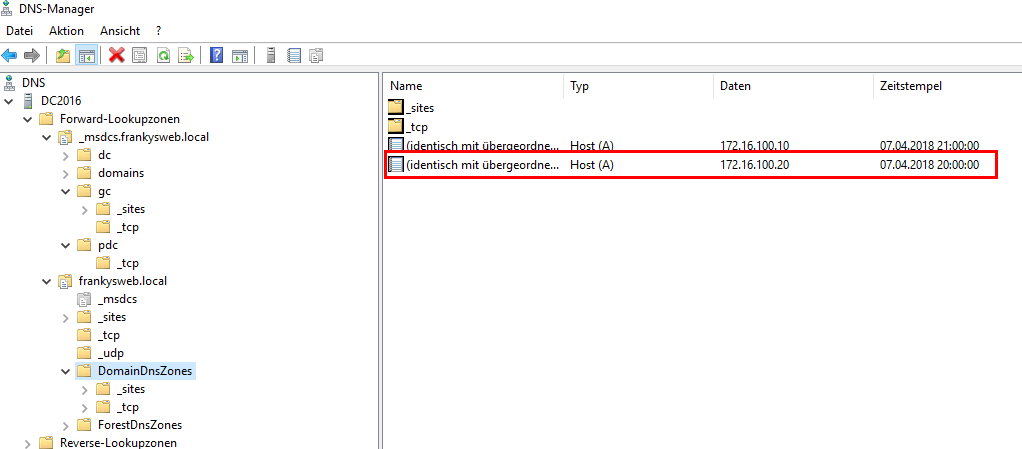
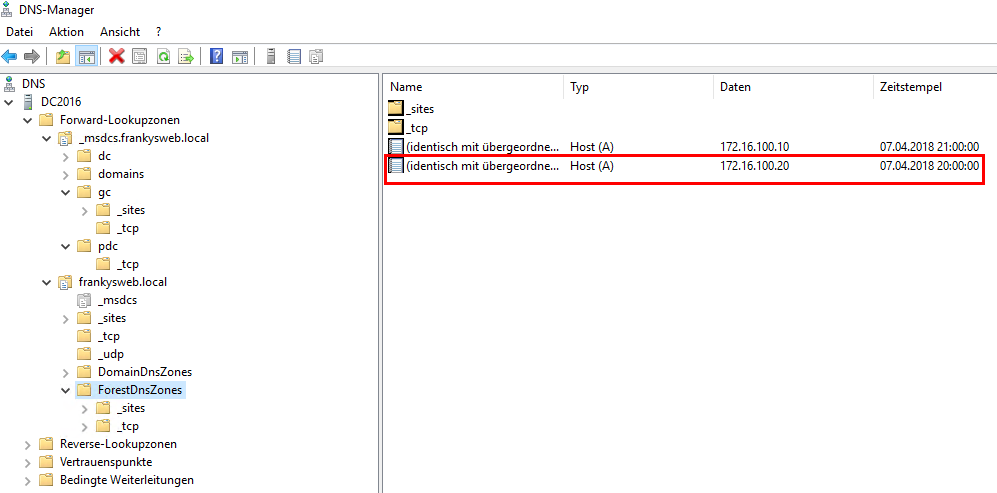
Jetzt noch einmal kurz im DNS Aufräumen und die folgenden drei alten Einträge löschen:

Migration Domain Controller zu Server 2016

Migration Domain Controller zu Server 2016

Migration Domain Controller zu Server 2016

Fertig. Sicherheitshalber sollten Exchange und SQL-Server wenn vorhanden einmal neu gestartet werden.

by admin | Posted in EDV Ecke, Windows Server | Kommentare deaktiviert für Migration Domain Controller zu Server 2016/19 |


Powered by Wordpress using the theme bbv1