Juni 14th, 2023

Server Migration

The original article is here: https://petri.com/7-steps-to-migrate-windows-2012-r2-domain-controllers-to-windows-server-2019/#5_Move_Flexible_Single_Master_Operation_FSMO_roles_to_new_server


In this article, I’m going to take you through the high-level steps for migrating a Windows Server 2012 R2 DC to Windows Server 2016 or Windows Server 2019. The procedure is the same, regardless of whether you choose Server 2016 or 2019. But I recommend migrating straight to Windows Server 2019. There simply isn’t a reason not to.

1. Set up a new server using Windows Server 2019

The first step is to install Windows Server 2019 on a new physical device or virtual machine. If you are more technically experienced with Windows Server, you could choose to install Server Core and then perform the necessary steps using PowerShell or by remotely connecting to the new server using Server Manager or Windows Admin Center. Otherwise, install Windows Server with the Desktop Experience role enabled.

If you are installing Windows Server 2016, you can check out Aidan Finn’s article on Petri here.

2. Join the new server to your existing Active Directory domain

Once the new server is up and running, join it to your existing AD domain. You can start the process from the Local Server tab in Server Manager by clicking WORKGROUP under the Properties. The procedure is then the same as joining Windows 10 to an AD domain. You will need to reboot the server to complete the process.

3. Install the Active Directory Domain Services role

Wait for the server to reboot and then sign in with a domain admin account. You can then install the Active Directory Domain Services (AD DS) server role using Server Manager and the Add Roles and Features wizard in the Manage menu. You can also use the following PowerShell command:

Install-WindowsFeature -Name AD-Domain-Services -IncludeManagementTools

4. Promote the new server to a domain controller

When the AD DS server role has been installed, you’ll get a notification in Server Manager prompting you to promote the server to a domain controller. Clicking the yellow exclamation mark icon will launch the AD DS configuration wizard. You should choose to ‘Add a domain controller to an existing domain’ and follow through the on-screen instructions. And providing that you are signed in with a domain admin account, adprep will automatically prepare your existing domain.

5. Move Flexible Single Master Operation (FSMO) roles to new server

The next step is to log on to the old domain controller and move the domain and forest FSMO roles, there are five in total, to the new DC. The easiest way to do this is using PowerShell. In the command below, you should replace DC1 with the name of your new DC.

This article assumes you have a domain with only one DC. In practice it’s likely that you will have more than one DC, so make sure you understand how FSMO roles work and on which DCs they are located in your domain and forest.

Move-ADDirectoryServerOperationMasterRole -Identity DC1 -OperationMasterRole 0,1,2,3,4

On the new domain controller, confirm that the FSMO roles have been moved. Start by checking the domain FSMO roles. Using Get-ADDomain, check the name of the server next to the following entries: InfrastructureMaster, PDCEmulator, and RIDMaster. The server name should match that of your new domain controller. Similarly, using Get-ADForest, check the name of the server next to the following entries: SchemaMaster and DomainNamingMaster. Again, the server name should match that of your new domain controller.
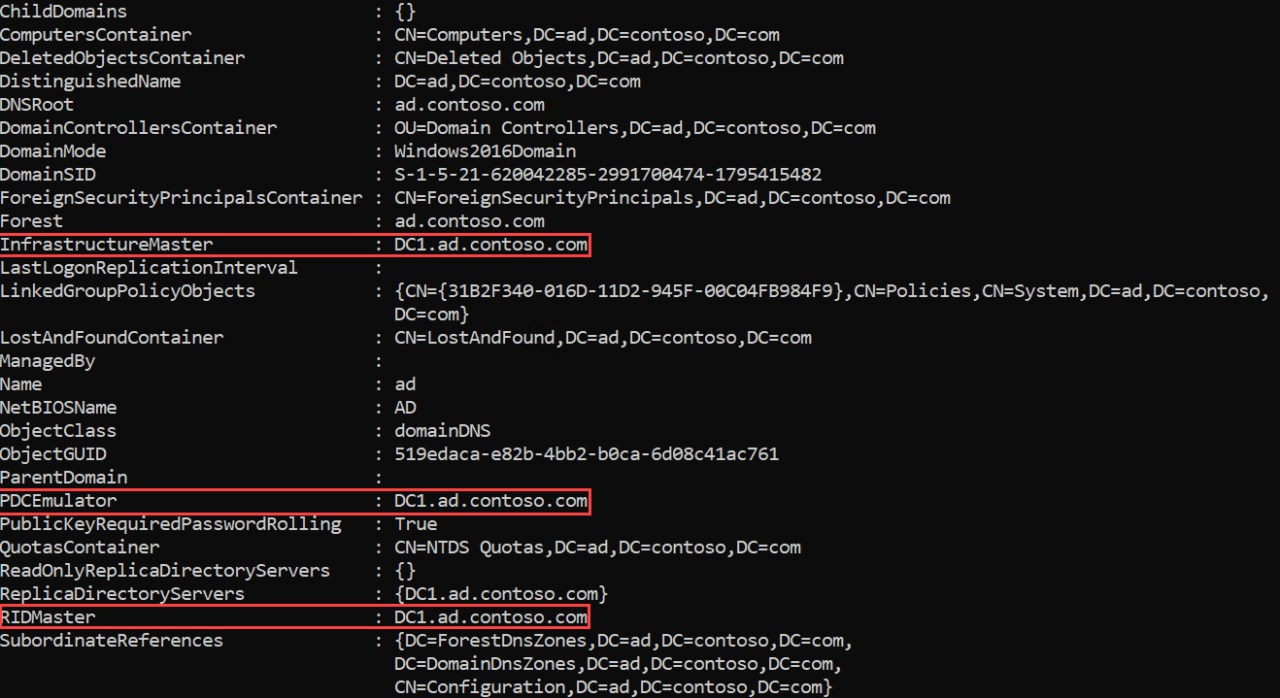
Image #1 Expand
7 Steps to Migrate Windows 2012 R2 Domain Controllers to Windows Server 2019 (Image Credit: Russell Smith)


6. Demote your old domain controller

Now that you have moved the FSMO roles to the new DC, you can safely demote the old Windows Server 2012 R2 domain controller. You can demote a DC using Server Manager. One way to demote a DC is to use the Remove Roles and Features command in the Manage menu to remove the AD DS server role. Removing the role will open the Active Directory Domain Services Configuration wizard and take you through the steps to demote the DC before the AD DS role can be removed.

Alternatively, you can use the Uninstall-ADDSDomainController and Uninstall-WindowsFeature PowerShell cmdlets to demote the DC and uninstall the AD DS server role respectively.

7. Raise the domain and forest functional levels

Finally, you can raise the domain and forest functional levels to Windows Server 2016. Even if you are running Windows Server 2019, the highest functional levels are Windows Server 2016. You can confirm the domain and forest levels using Get-ADDomain and Get-ADForest cmdlets.

Set-ADDomainMode -Identity CONTOSO -DomainMode Windows2016Domain
Set-ADForestMode -Identity CONTOSO Windows2016Forest

And that is it! As you can see, while there are several steps, it is relatively simple to migrate a DC to a more current version of Windows Server. So, I encourage you to look at migrating any DCs that are running anything below Windows Server 2016.

by admin | Posted in Server | Kommentare deaktiviert für Server Migration |
Februar 16th, 2022

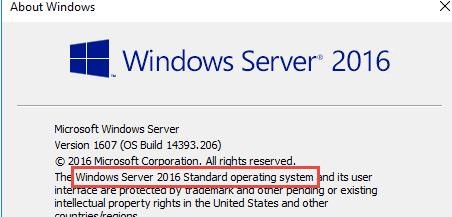
Windows Server 2016: Converting Evaluation to Licensed Version

Windows Server 2016: Converting Evaluation to Licensed Version

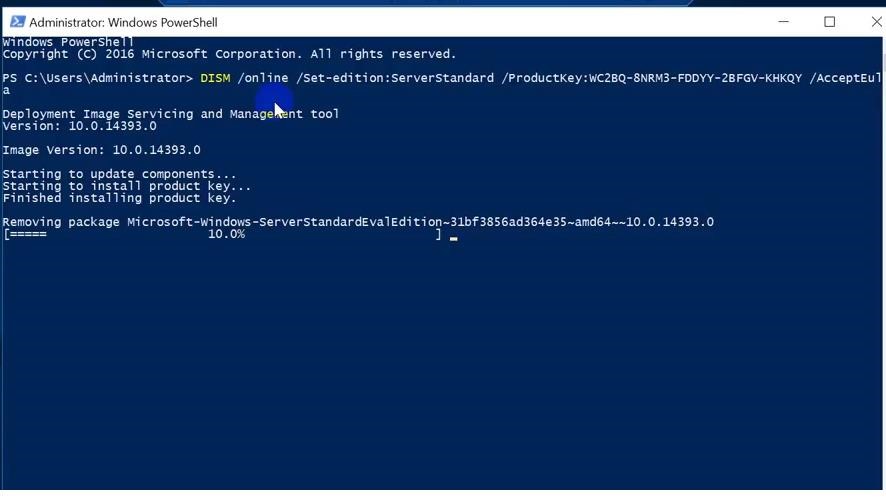
To upgrade Windows Server Evaluation to a full version, you need to use the public KMS (GVLK) key for Windows Server 2016. The conversion is performed via the command prompt using the built-in DISM tool. For example, to upgrade your Eval edition to the Retail version of Windows Server 2016 Standard, use the command:
dism /online /set-edition:ServerStandard /productkey:WC2BQ-8NRM3-FDDYY-2BFGV-KHKQY /accepteula

dism /online /set-edition:ServerStandard /productkey

If you specify your retail or MAK key instead of a public GVLK key in the DISM command, an error will appear:

Error 1168
The specified product key could not be validated.
Check that the specified product key is valid and that it matches the target edition.

Error 1168 The specified product key could not be validated

Always use the Microsoft GVLK key when upgrading the Windows Server edition. You will later replace it with your own product key.

Some users complain that sometimes when you run a DISM /set-edition command, it hangs by 10%. In this case, we recommend you find and stop the Software Protection Service (Stop-Service sppsvc -Force) and disable Internet access (you can even disconnect the Ethernet LAN cable).

After you run this command, wait for the message Command completed successfully (in some cases it may take several hours!!!). After that restart your server and make sure you have a full Standard edition installed.

winver.exe

winver

To upgrade Windows Server 2016 Eval to the Datacenter edition, you need to use another GVLK key. The command will look like this:

DISM /online /Set-Edition:ServerDatacenter /ProductKey:CB7KF-BWN84-R7R2Y-793K2-8XDDG /AcceptEula

If a KMS server is deployed in your local network (What is Volume KMS activation?), you can use it to activate your Windows Server OS with the following commands:

slmgr /ipk WC2BQ-8NRM3-FDDYY-2BFGV-KHKQY (this is the GVLK key for Windows Server 2016 Standard, another product key is used for Datacenter, it is listed above)
slmgr /ato

If there is no KMS server, you can specify your MAK or Retail product key for Windows Server and activate the OS as usual: via the Internet or by phone.

Remove the current key:

slmgr.vbs /upk
slmgr.vbs /cpky

Enter your MAK or retail product key:

slmgr.vbs /ipk xxxxx-xxxxx-xxxxx-xxxxx-xxxxx

Activate a Windows Server instance:
slmgr.vbs /ato

Windows Server 2019: Upgrade Evaluation to Full Version

To convert Windows Server 2019 EVAL to a full edition, you need to use the GVLK (KMS) keys for Windows Server 2019. You can upgrade Windows Server 2019 edition the same way.

Convert Windows Server 2019 Evaluation to Windows Server 2019 Standard:

dism /online /set-edition:ServerStandard /productkey:N69G4-B89J2-4G8F4-WWYCC-J464C /accepteula

In order to convert Windows Server 2019 Evaluation to Windows Server 2019 Datacenter edition:

dism /online /set-edition:ServerDatacenter /productkey:WMDGN-G9PQG-XVVXX-R3X43-63DFG /accepteula

Confirm the command, restart the server. After rebooting, make sure your Windows Server Eval edition is converted to full retail.

Windows Server 2022: Converting Evaluation to the Retail Edition

Although the official RTM version of Windows Server 2022 has not yet been released, Microsoft has already published the public KMS client setup keys (GVLKs) for this OS version.

The command to convert Windows Server 2022 Evaluation edition to Standard:

dism /online /set-edition:serverstandard /productkey:VDYBN-27WPP-V4HQT-9VMD4-VMK7H /accepteula

Convert eval instance to Windows Server 2022 Datacenter:

dism /online /set-edition:serverdatacenter /productkey:WX4NM-KYWYW-QJJR4-XV3QB-6VM33 /accepteula

A complete list of public KMS client setup keys from Microsoft for all supported Windows versions is available here http://technet.microsoft.com/en-us/library/jj612867.aspx.

Possible DISM errors:

  • Error: 50. Setting an Edition is not supported with online images — Most likely, your server has an Active Directory Domain Controller role (AD DS) deployed. Converting of Windows Server edition on a DC is not supported;
  • This Windows image cannot upgrade to the edition of Windows
    that was specified. The upgrade cannot proceed. Run the
    /Get-TargetEditions option to see what edition of Windows you can
    upgrade to
    — the error appears if you try to convert Windows Server Evaluation Datacenter to Standard. You cannot upgrade Eval Datacenter to Standard. You need to convert the ServerDatacenterEval edition to ServerDatacenter. Specify the KMS key for Windows Server Datacenter edition in the DISM command
by admin | Posted in Windows Server | Kommentare deaktiviert für Windows Server 2016: Converting Evaluation to Licensed Version |
April 10th, 2021

Migration Domain Controller zu Server 2016/19

ch habe nun schon einige Mails bezüglich der Migration von Domain Controllern erhalten, die noch mit einem älteren Betriebssystem laufen. In den meisten Mails geht es darum, die IP-Adresse des ursprünglichen Domain Controllers beizubehalten.


Die Umgebungen, die in den Mails geschildert wurden, waren alle samt ähnlich, nur das Betriebssystem auf dem der ursprüngliche Domain Controller läuft variiert. In den meisten Fällen gab es nur einen Domain Controller der auf Windows Server 2008 läuft und nun durch Windows Server 2016 ersetzt werden soll. In einem Fall gab es sogar noch einen Domain Controller der auf Server 2003 läuft.

Es ist natürlich nicht empfohlen nur einen Domain Controller zu betreiben, allerdings lassen manch kleine Umgebungen auch nichts anderes zu.

Dieser Artikel widmet sich der Migration eines Active Directory mit nur einem Domain Controller basierend auf Server 2008 zu Server 2016 inklusive der Beibehaltung der ursprünglichen IP des Server 2008 DCs.

Server 2003 ist hier außen vor, kann aber mittels der gleichen Methode zunächst zu Server 2008 und danach von Server 2008 zu Server 2016 migriert werden. Eine direkte Migration von Server 2003 zu Server 2016 DCs ist nicht möglich.

Die Umgebung

Für diesen Artikel habe ich deine Testumgebung erzeugt, die wie folgt aufgebaut ist:

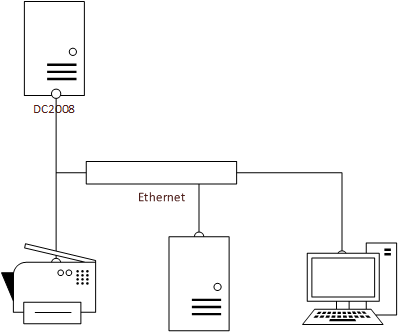
Migration Domain Controller zu Server 2016

Es gibt einen Windows Server 2008 Domain Controller mit der statischen IP 172.16.100.10 und dem Namen DC2008. Im Netzwerk gibt es weitere Clients, welche den Domain Controller als DNS Server nutzen. Der Name des Active Directory lautet frankysweb.local.

Es wurde ein neuer Windows Server 2016 mit dem Namen DC2016 und der IP 172.16.100.20 installiert. Der Server ist bisher nur Mitglied des Active Directory und nutzt ebenfalls DC2008 als DNS Server. Nach Abschluss der Migration soll der neue Server wieder die IP 172.16.100.10 bekommen.

Neuen Domain Controller installieren

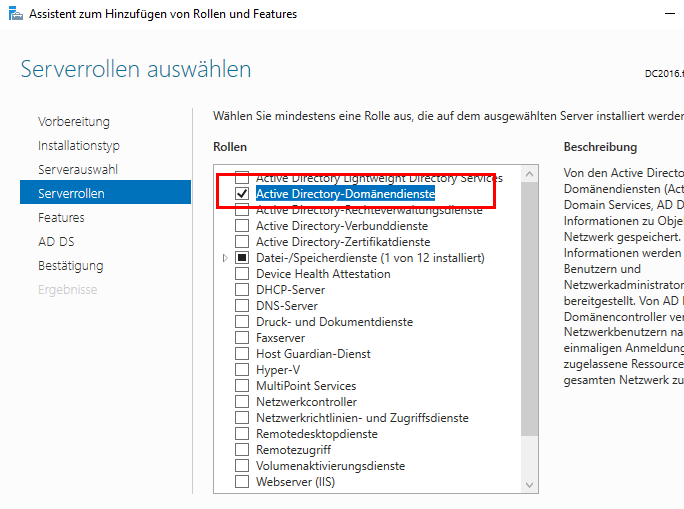
Zunächst muss die Rolle “Active Directory-Domänendienste” auf DC2016 installiert werden, bevor DC2016 zum Domain Controller hochgestuft werden kann:

Migration Domain Controller zu Server 2016

Für die Zeit der Migration von DC2008 zu DC2016 werden also zwei Domain Controller laufen.

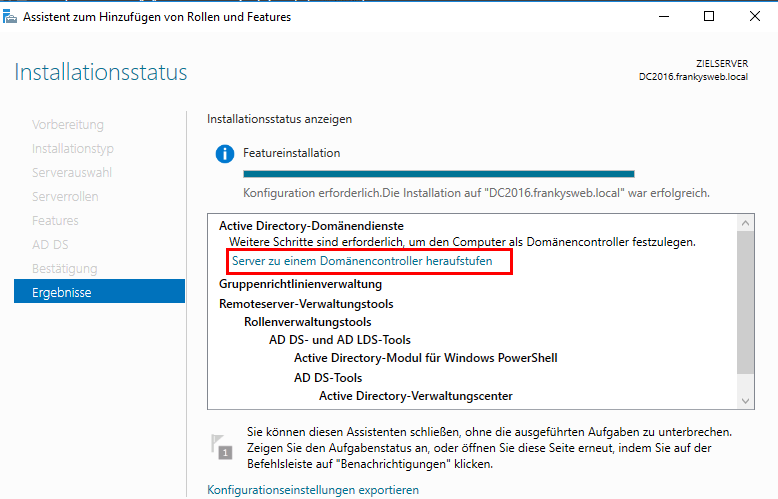
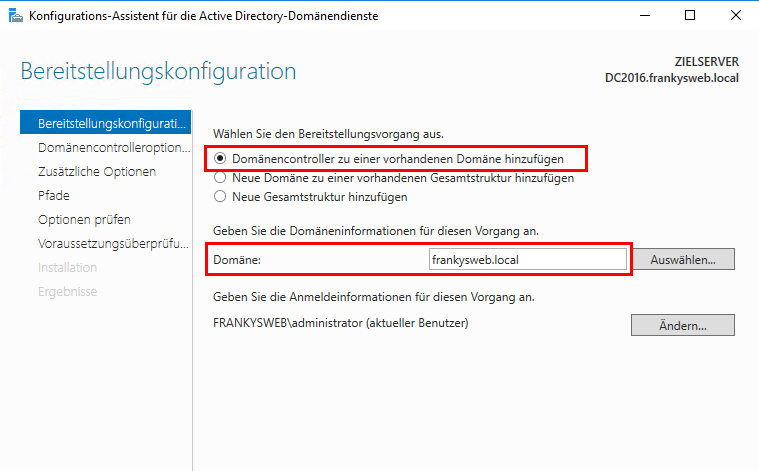
Nachdem die Rolle installiert wurde, kann DC2016 direkt zum DC hochgestuft werden:

Migration Domain Controller zu Server 2016

Die Standardeinstellungen können so belassen werden:

Migration Domain Controller zu Server 2016

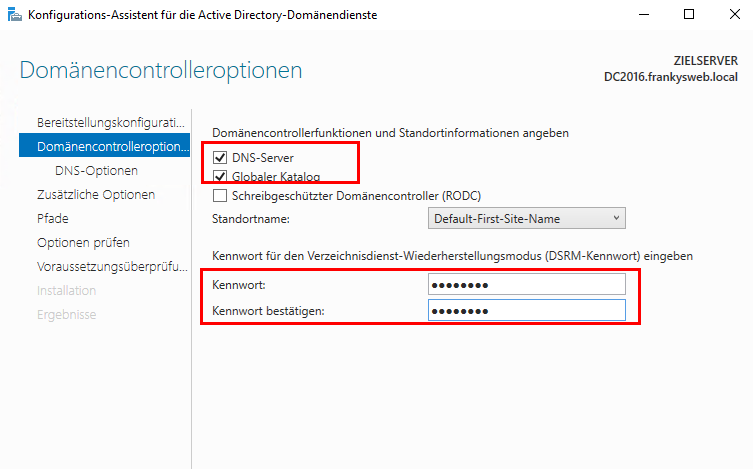
Auch im nächsten Dialog muss nur das Kennwort für den Wiederherstellungsmodus gesetzt werden, die Häkchen bei “DNS-Server” und “Globaler Katalog” bleiben gesetzt:

Migration Domain Controller zu Server 2016

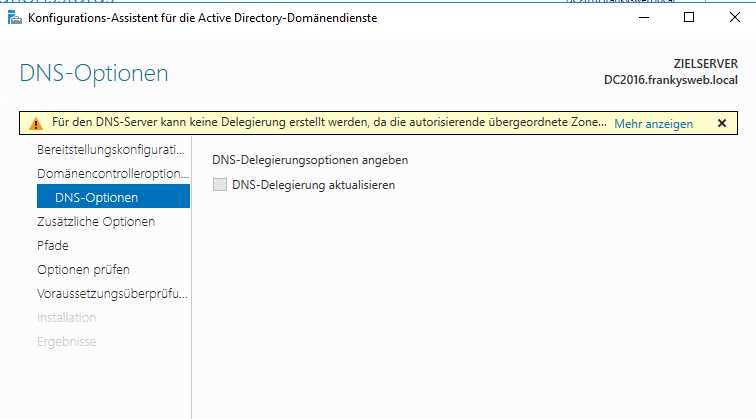
Eine Delegierung wird in den meisten kleinen Umgebungen nicht benötigt, daher kann die Warnung ignoriert werden:

Migration Domain Controller zu Server 2016

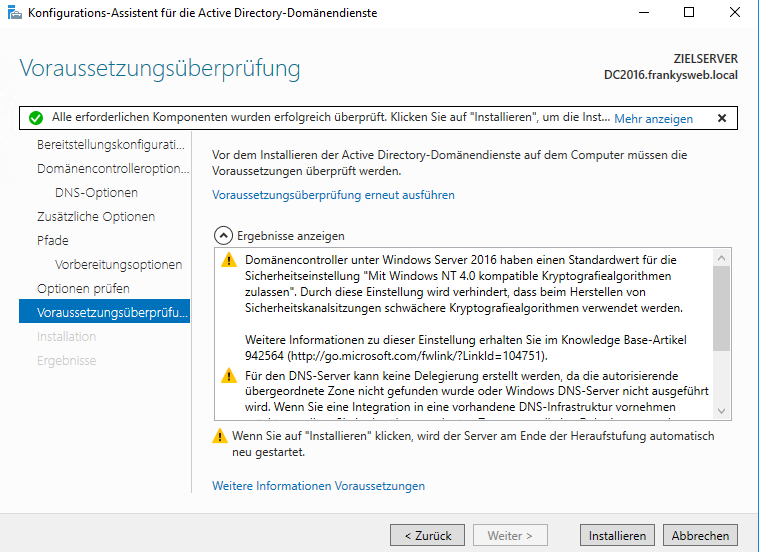
Die weiteren Dialoge können alle mit “Weiter” bestätigt werden. Im letzten Dialog wird noch eine Zusammenfassung mit zwei Warnungen angezeigt. In diesem Fall sind die beiden Warnungen als Hinweise anzusehen:

Migration Domain Controller zu Server 2016

  • Es kann keine Delegierung für den übergeordneten DNS Server erstellt werden –> wird hier nicht benötigt
  • NT4 Clients können sich nicht mehr verbinden –> wird ebenfalls nicht mehr benötigt

Nachdem DC2016 automatisch neu gestartet wurde, gibt es nun also zwei Domain Controller für die Domain frankysweb.local:

Migration Domain Controller zu Server 2016

Jetzt sollten noch die Ereignis Protokolle durchgesehen werden, ob es zu Fehlern bei der Replikation gekommen ist. Zum Test kann auch ein neues Benutzerkonto angelegt und dann geprüft werden, ob es auf beiden DCs angezeigt wird. Wenn die Replikation funktioniert, kann es weitergehen.

FSMO Rollen verschieben

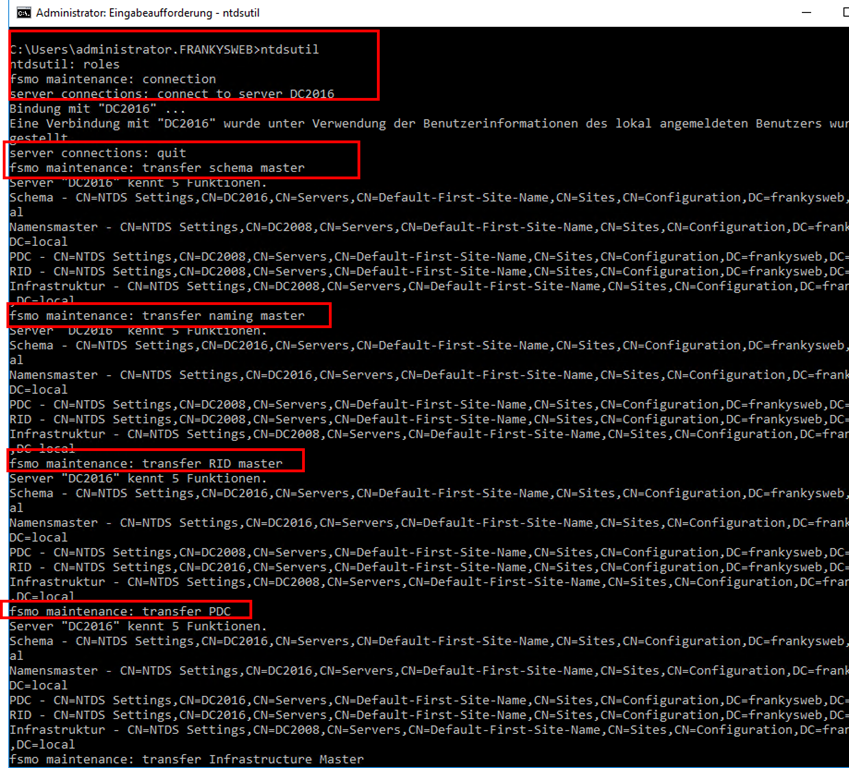
Das Verschieben der FSMO Rollen von DC2008 zu DC2016 funktioniert am einfachsten per Command Line und dem Tool “ntdsutil”. Die folgenden Befehle können genutzt werden um alle FSMO Rollen von DC2008 zu DC2016 zu verschieben (Hinweis: Die Verbindung wird zu DC2016 aufgebaut):

1
2
3
4
5
6
7
8
9
roles
connection
connect to server DC2016
quit
transfer schema master
transfer naming master
transfer RID master
transfer PDC
transfer Infrastructure Master

Die Abfragen müssen dann mit “OK” bestätigt werden.

Migration Domain Controller zu Server 2016

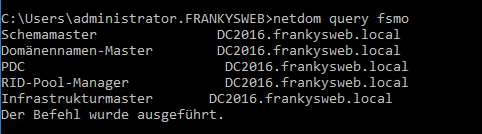
mit dem Befehl “netdom query fsmo” kann überprüft werden, ob alle FSMO Rollen verschoben wurden:

Migration Domain Controller zu Server 2016

Wenn dies erfolgt ist, kann es mit dem nächsten Schritt weitergehen.

Alten Domain Controller entfernen

Ab jetzt ist etwas Downtime nötig. Der alte Domain Controller wird entfernt und damit auch der alte DNS Server. Alle Clients/Server die ausschließlich die IP 172.16.100.10 (von DC2008) als DNS-Server konfiguriert haben, können den neuen Domain Controller nicht via DNS finden. Dieser Schritt sollte also in einem Wartungsfenster erfolgen.

Um eine Downtime zu vermeiden kann auch einfach der neue Server als primärer DNS Server eingestellt werden, wenn dies auf allen Clients erfolgt, muss natürlich auch nicht die IP-Adresse des neuen Domain Controllers geändert werden. Hier geht es nun aber genau um den Fall dass der neue Server die IP des alten Servers erben soll. Daher weiter im Text.

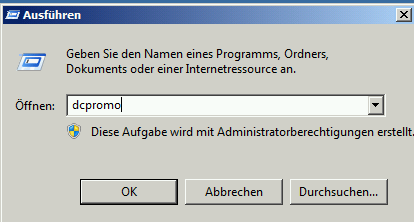
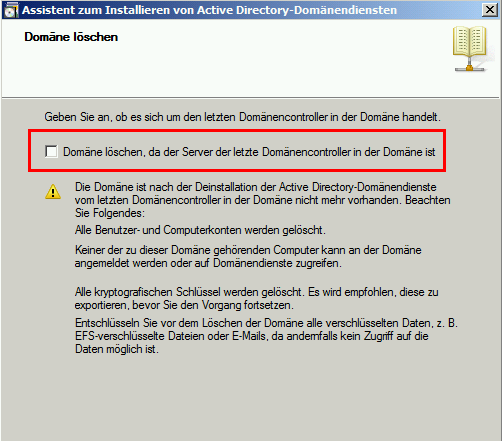
DC2008 wird nun runtergestuft, dies funktioniert mit dem Befehl “dcpromo”:


Migration Domain Controller zu Server 2016

Es öffnet sich der Dialog zum entfernen des Domain Controllers. Das Häkchen bei “Domäne löschen, da dies der letzte Domänencontroller in der Domäne ist” darf NICHT gesetzt werden:

Migration Domain Controller zu Server 2016

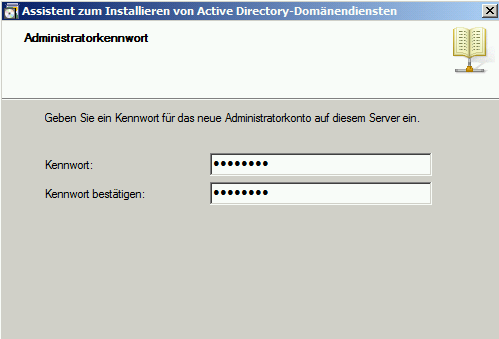
Im darauffolgenden Dialog muss ein neues lokales Administrator Kennwort angegeben werden:

Migration Domain Controller zu Server 2016

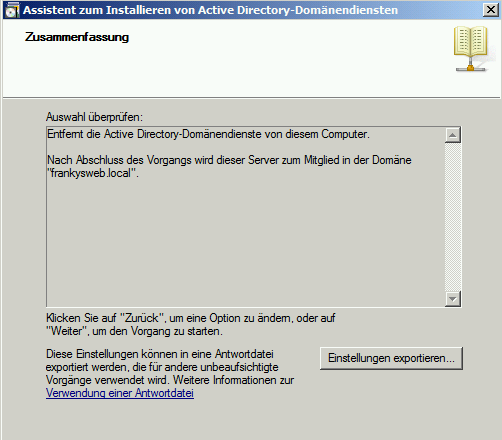
Die Zusammenfassung kann bestätigt werden:

Migration Domain Controller zu Server 2016

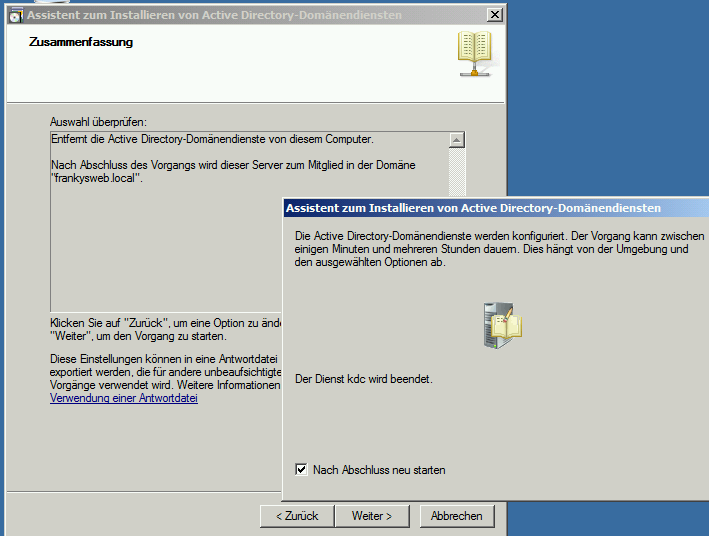
Die Domain Controller Rolle wird nun von DC2008 entfernt und der Server kann neu gestartet werden.

Migration Domain Controller zu Server 2016

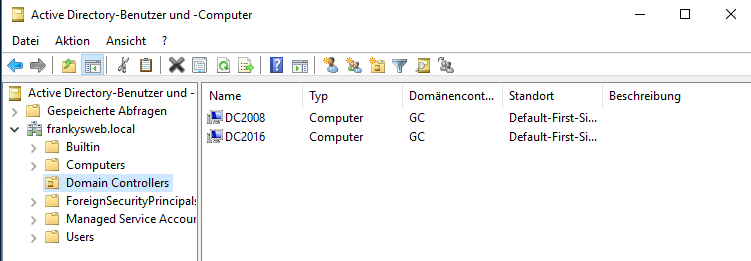
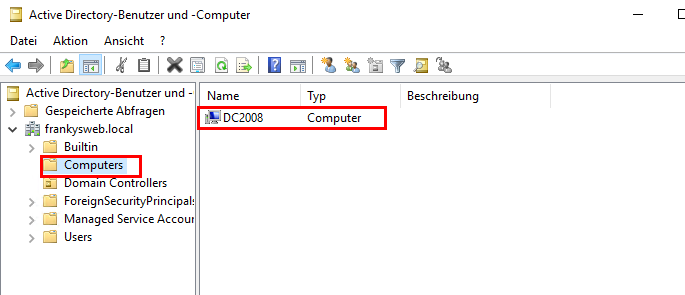
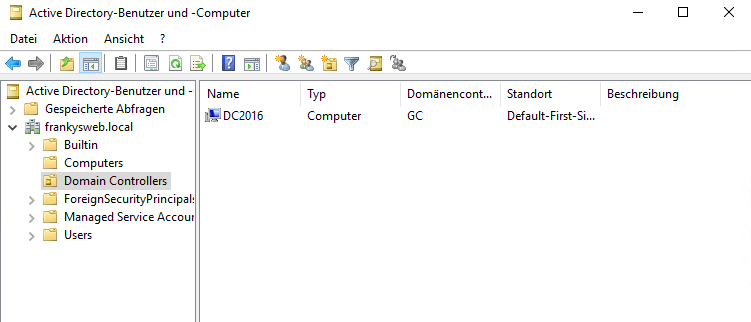
Nachdem DC2008 neu gestartet wurde, gibt es in der OU “Domain Controllers” nur noch das Computerkonto von DC2016:

Migration Domain Controller zu Server 2016

DC2008 kann nach dem Neustart runtergefahren werden, somit ist die IP Adresse frei und kann gleich dem neuen Domain Controller zugeordnet werden. Vorher sind allerdings noch ein paar Aufräumarbeiten nötig.

Aufräumarbeiten

Das alte Computer Konto von DC2008 findet sich nun in der OU “Computers” und kann hier gelöscht werden:

Migration Domain Controller zu Server 2016

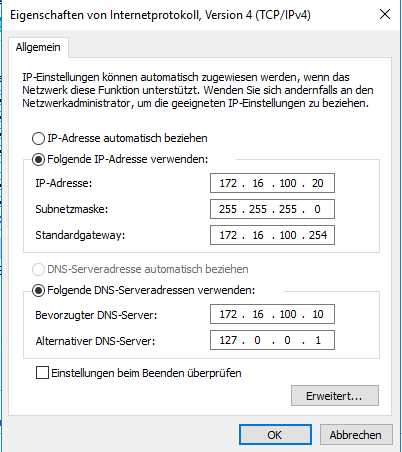
Die DNS Einstellung der Netzwerkkarte auf DC2016 kann nun korrigiert werden, hier ist noch die IP von DC2008 eingetragen:

Migration Domain Controller zu Server 2016

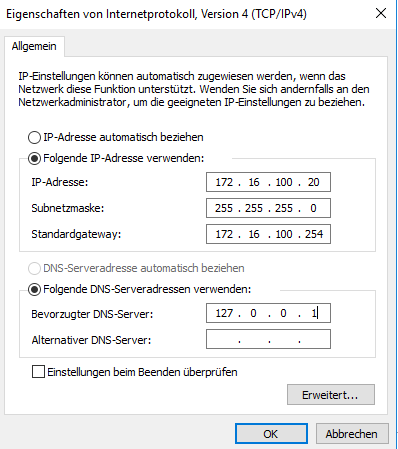
Hier wird nun als DNS Server 127.0.0.1 verwendet. Es ist hier übrigens wenig sinnvoll einen Router oder öffentlichen DNS Server ans Sekundären DNS Server einzutragen, da diese in der Regel nicht die Zonen für das lokale Active Directory auflösen können. In Umgebungen mit nur einem DC steht hier also nur 127.0.0.1:

Migration Domain Controller zu Server 2016

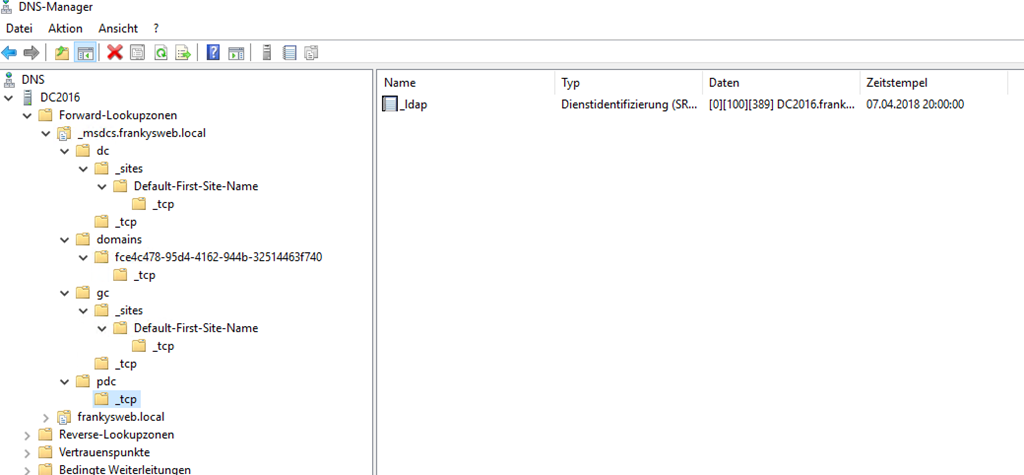
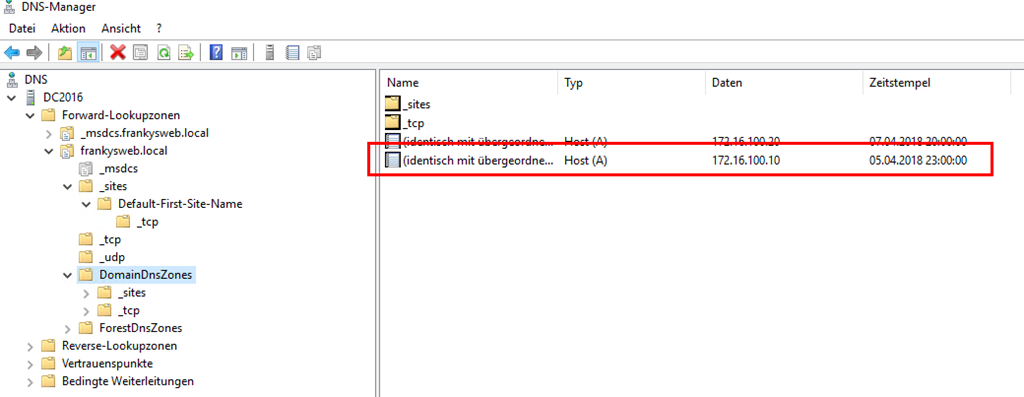
Im DNS-Manager müssen nun einmal alle Zonen und Subzonen durchgesehen werden, hier bleiben oft Leichen des alten Domain Controllers zurück. Hier können anhand der alten IP / Hostnamen Leichen erkannt und gelöscht werden:

Migration Domain Controller zu Server 2016

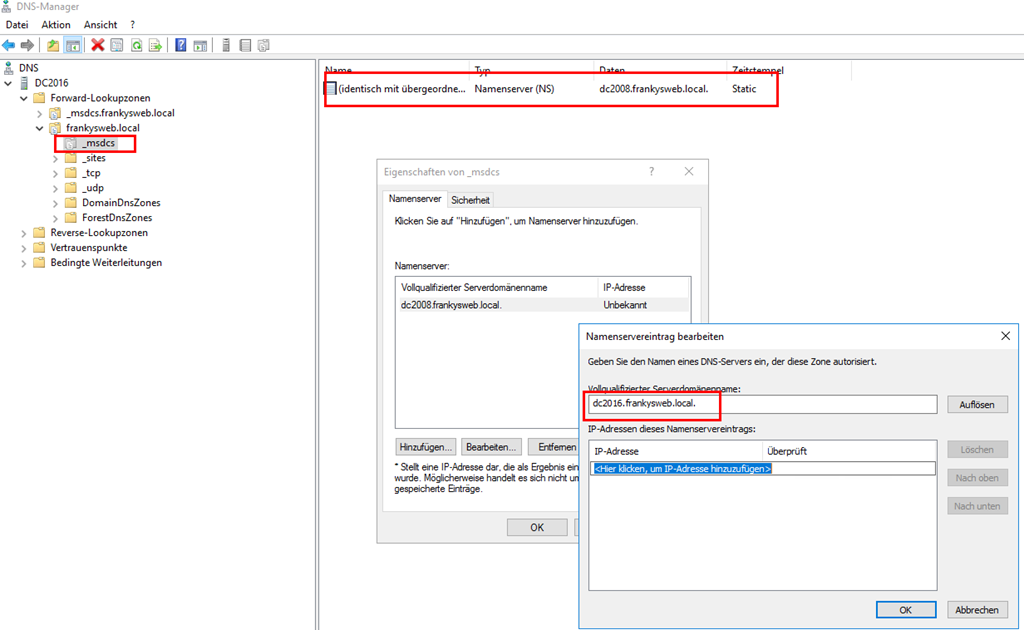
Die delegierte Zone “_msdcs” hat ebenfalls noch einen alten Nameserver Eintrag, dieser muss ebenfalls korrigiert werden:

Migration Domain Controller zu Server 2016

Hier ist mal ein Beispiel für eine Leiche, die bei mir nicht gelöscht wurde:

Migration Domain Controller zu Server 2016

Wie gesagt, geht alle Zonen und Subzonen einmal durch und schaut nach alten Einträgen, irgendwo bleibt immer etwas zurück. Auch die Reverse Zone nicht vergessen.

IP Adresse des DCs ändern

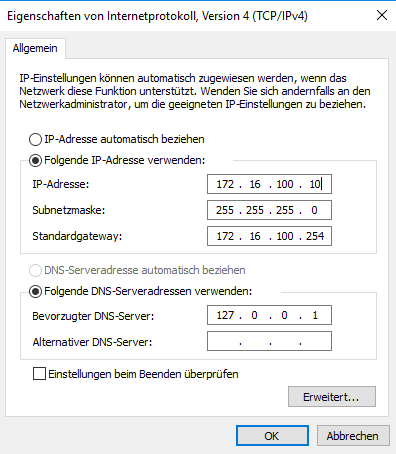
Das Ändern der IP Adresse ist nun kein Hexenwerk mehr. Zuerst wird die IP von DC2008 auf DC2016 konfiguriert:

Migration Domain Controller zu Server 2016

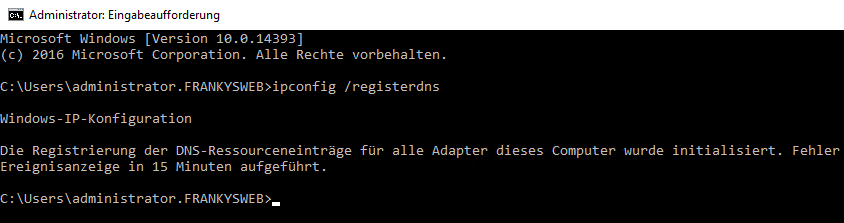
Danach folgt ein “ipconfig /registerdns”:

Migration Domain Controller zu Server 2016

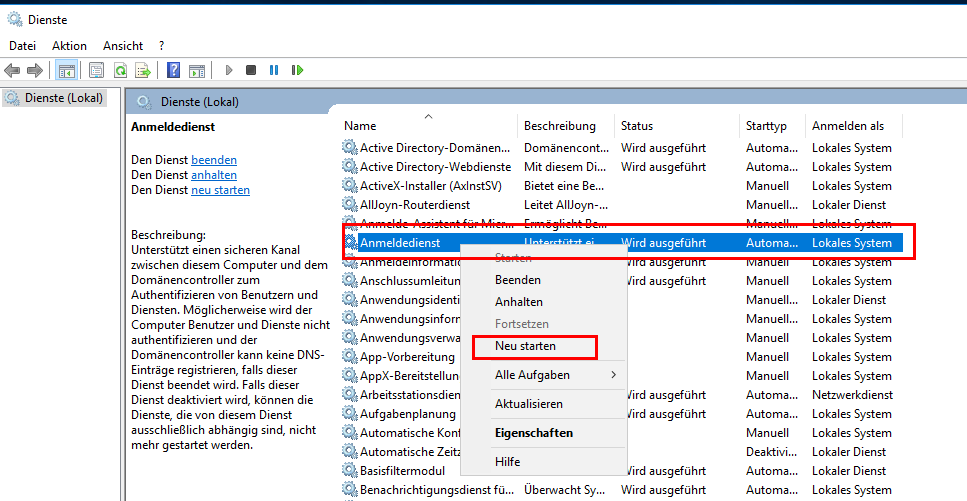
Dann wird der Anmeldedienst neu gestartet:

Migration Domain Controller zu Server 2016

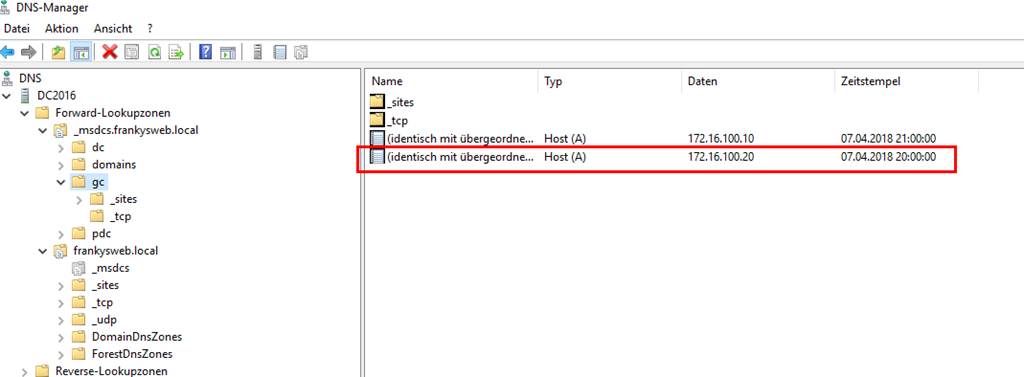
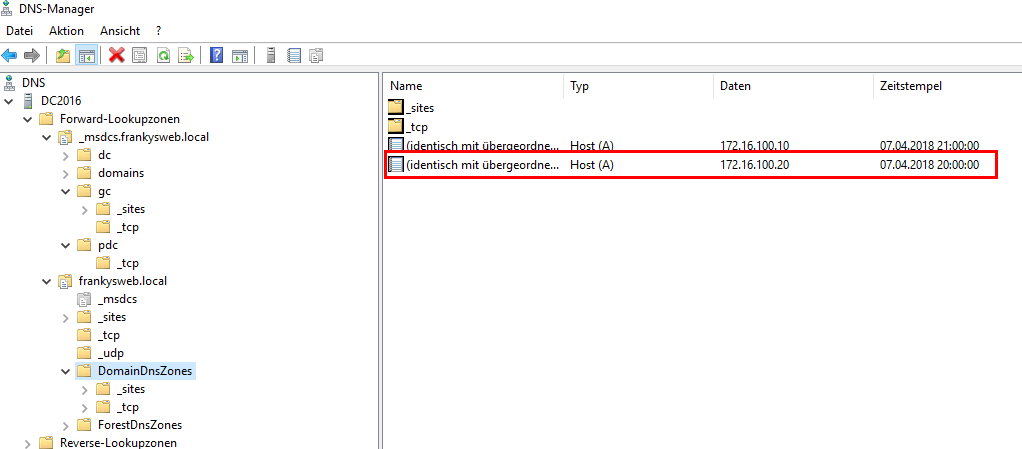
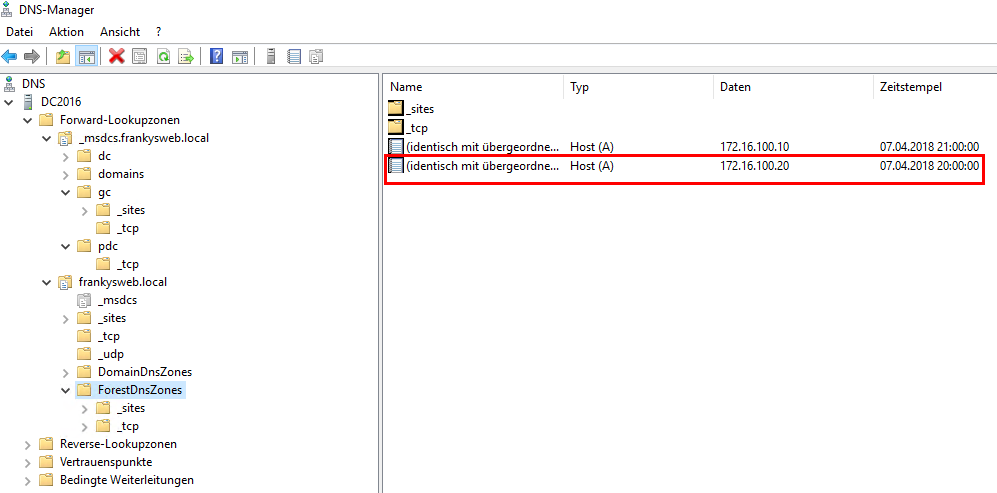
Jetzt noch einmal kurz im DNS Aufräumen und die folgenden drei alten Einträge löschen:

Migration Domain Controller zu Server 2016

Migration Domain Controller zu Server 2016

Migration Domain Controller zu Server 2016

Fertig. Sicherheitshalber sollten Exchange und SQL-Server wenn vorhanden einmal neu gestartet werden.

by admin | Posted in EDV Ecke, Windows Server | Kommentare deaktiviert für Migration Domain Controller zu Server 2016/19 |
Februar 3rd, 2020

https://www.altaro.com/vmware/directpath-io-esxi/

I was recently toying with the idea of setting up a FreeNAS virtual machine on my ESXi 6.5 host. This would give me an alternative shared storage resource to add to my testing environment. With that in mind, I sat down and started looking around for recommendations and what not, on how to accomplish the task. Many of the posts I came across, recommended to go for passthrough, or passthru, technically known as DirectPath I/O. My original thought was to use RDM or a plain old vmdk and attach it to the FreeNAS VM.

The problem with the latter solution is mainly one of performance regardless of this being a testing environment. With DirectPath enabled, I can give the FreeNAS VM direct access to a couple of unused drives installed on the host. So, without giving it further thought, I went ahead and enabled pass-through on the storage controller on my testing ESXi host.

And here comes the big disclaimer. DO NOT DO THIS ON A LIVE SYSTEM. You have been warned!

This post exists for the sole reason of helping some poor soul, out there, to recover from what turned out to be a silly oversight. More to come on this.

What went wrong?


The physical host I chose for my grandiose plan, has a single IBEX SATA controller with 3 disks attached to it. Nothing fancy. It’s just software emulated RAID which ESXi doesn’t even recognize hence the non-utilized drives. I’m only using one drive which I’ve also used to install ESXi on. Remember, this is a testing environment. On this one drive, there’s also the default local datastore and a couple of VMs.

The drive, by default, is split into a number of partitions during the ESXi installation. Two of the partitions, called bootbank and altbootbank, hold the ESXi binaries that are loaded into memory during the booting process. I’ll come back to this later.

Back to the business of enabling DirectPath I/O on a PCI card such as a storage controller. In the next screenshot, I’ve highlighted the ESXi host in question and labeled the steps taken to enable DirectPath for a PCI device. This is enabled by simply ticking a box next to the device name. In this case, I enabled pass-through on the Ibex Peak SATA controller. Keep in mind that this is my one and only storage controller.

After enabling DirectPath , you are reminded that the host must be rebooted for the change to take root.

Again, without giving it much thought, I rebooted the host. Five minutes later and the host was back on line. I proceeded to create the new VM for FreeNAS but I quickly found out that I no longer had a datastore where to create it. And it suddenly dawned on me! With DirectPath enabled, the hypervisor will no longer have access to the device. Darn!

And that’s when I ended up with a bunch of inaccessible VMs on a datastore that was no more.

At this point, panic would have quickly ensued if this were a live system but thankfully it was not. I started digging around in vSphere client, and one of first things noticed was that the Ibex storage adapter was not listed under Storage Adapters irrespective of the number of rescans carried out.

The logical solution that first came to mind was, disable DirectPath I/O on the storage controller, reboot the host and restore everything to its former glory. So I did, rebooted the host and  waited for another 5 minutes only to discover the host was still missing the datastore and storage adapter.

The Fix


The first fix I found on the net is the one described in KB1022011. Basically, you SSH to ESXi and inspect /etc/vmware/esx.conf looking for the line where a device’s owner value is set to passthru. This must be changed to vmkernel to disable pass-through. To verify the device is the correct one, look at the /device value and compare it to the Device ID value in vSphere Web client; Configure -> PCI Devices -> Edit.

In this example, the device ID, for the storage controller, is 3b25 meaning I know I’m changing the correct one. You can see this in the next screenshot.

To replace the entry, use vi, substituting passthru with vmkernel, which is what I did. I rebooted the host a third time and much to my annoyance it was still missing the datastore. After some more digging around, I came across these two links; The wrong way to use VMware DirectPath and KB2043048.

The first link is what helped me fix the issue and also provided me with the inspiration to write this post, so kudos goes to the author.

So, why did the fix fail?


The simple explanation is that the changes done, given my setup, won’t persist because everything is running off volatile memory, in RAM that is. This means that once ESXi is rebooted, the change done to esx.conf is lost too and it’s back to square one. During the booting process, the ESXi binaries are loaded from partition sda5 (bootbank) or sda6 (altbootbank) depending on which one is currently marked active.

The host’s configuration files are automatically and periodically backed up via script to an archive called state.tgz which is copied to both partitions depending on which one is active at the time. This backup mechanism is what allows you to revert to a previous state using Shift-R while ESXi is booting. Unfortunately, in my case, the pass-through change was backed up as well and copied to both partitions or so it seemed.

ESXi has full visibility of the drive while booting up, which explains why it manages to in the first place despite the pass-through setting. It is only when esx.conf is read, that the pass-through setting is enforced/

Reverting to a previous state using Shift-R did not work for me, so I went down the GParted route.

The GParted Fix


GParted, GNOME Partition Editor, is a free Linux-based disk management utility that has saved my skin on countless occasions. You can create a GParted bootable USB stick by downloading the ISO from here and using Rufus.

As mentioned already, we need to change the passthru setting in the backed up esx.conf file found in the state.tgz archive. To do this, we must first uncompress state.tgz which contains a second archive, local.tgz.

Uncompressing local.tgz yields /etc folder where we find esx.conf. Once there, open esx.conf in an editorFind and change the passthru entry and compress the /etc folder back to state.tgz. 

Finally we overwrite the original state.tgz files under /sda5 and /sda6 and reboot the host.

Here’s the whole procedure in step form.

Step 1 – Boot the ESXi server off the GParted USB stick. Once it’s up, open a terminal window.

Step 2 – Run the following commands. cd / mkdir /mnt/hd1 /mnt/hd2 /temp mount -t vfat /dev/sd5 /mnt/hd1 mount -t vfat /dev/sd6 /mnt/hd2

1234 cd /mkdir /mnt/hd1 /mnt/hd2 /tempmount -t vfat /dev/sd5 /mnt/hd1mount -t vfat /dev/sd6 /mnt/hd2

Step 3 – Determine which state.tgz file is most current. Run the following commands and look at the time stamps. You’ll need to uncompress the most recent one to keep using the current host configuration save for the changes we’ll be making. ls -l /mnt/hd1/state.tgz ls -l /mnt/hd2/state.tgz

12 ls -l /mnt/hd1/state.tgzls -l /mnt/hd2/state.tgz

Here I’m showing the file while SSH’ed to the host

Step 4 – Copy the most current state.tgz to /temp. Here, I’ve assumed that the most current file is the one under /mnt/hd1. Yours could be different. cp /mnt/hd1/state.tgz /temp

1 cp /mnt/hd1/state.tgz /temp

Step 5 – Uncompress state.tgz and the resulting local.tgz using tar. You should end up with an etc directory as shown. cd /temp tar -xf state.tgz tar -xf local.tgz

123 cd /temptar -xf state.tgztar -xf local.tgz

Step 6 – Navigate to /temp/etc/vmware and open esx.conf in vi.

  • Press [/] and type passthru followed by Enter. This takes you to the line you need to edit assuming passthru has been enabled just for one device. If not, make sure the device ID matches as explained above.
  • Press [Insert] and change the value to vmkernel.
  • Press [ESC], [:] and type wq.
  • Press [Enter] to save the changes.

Step 7 – Compress the archive and copy it back to /mnt/hd1 and /mnt/hd2. cd /temp rm *.tgz tar -cf local.tgz etc tar -cf state.tgz local.tgz cp state.tgz /mnt/hd1 cp state.tgz /mnt/hd2

123456 cd /temprm *.tgztar -cf local.tgz etctar -cf state.tgz local.tgzcp state.tgz /mnt/hd1cp state.tgz /mnt/hd2

Reboot the host and your datastore and virtual machines should spring back to life. The procedure worked for me. The storage adapter, datastore and VM all came back to life with no apparent issues.

ibex controller

Conclusion


The moral of the story is to test, test and test before replicating something on a production system. Reading the manual and doing some research first goes a long way in avoiding similar situations. The correct solution of course, in this case, would have been to install a 2nd storage controller and enable DirectPath on it. The optimal solution would be to install FreeNas on proper hardware instead of virtualizing it, something I haven’t written about but might cover in a future post. In the meantime, have a look at the complete list of VMware posts on this blog for more interesting topics to learn from.

by admin | Posted in EDV Ecke, ESXi | Kommentare deaktiviert für https://www.altaro.com/vmware/directpath-io-esxi/ |
März 1st, 2017

HP ROK Windows Server als VM unter VMware ESX / ESXi installieren

Um eine HP Windows ROK oder auch andere Windows ROK oder OEM als VM unter VMware ESX oder ESXi zu installieren muss der Host sein BIOS der VM „zeigen“.

Sonst bricht die Installation mit einer Fehlermeldung wie „This system is not supported platform.“ ab.

Damit nun die VM die Hardware erkennen kann, muss man unter „Edit Settings“ -> „Options“ -> „Advanced“ -> „General“ -> „Configuration Parameters…“

SMBIOS.reflectHost=TRUE

eintragen.

by admin | Posted in EDV Ecke, ESXi, Windows Server | Kommentare deaktiviert für HP ROK Windows Server als VM unter VMware ESX / ESXi installieren |
Februar 14th, 2014

Der Upgrade von ESXi 5 auf ESXi 5.1

top Erklärung

Der Upgrade von ESXi 5 auf ESXi 5.1 wird in diesem Text anhand des Upgrades

VMware-ESXi-5.1.0-799733-depot.zip

gezeigt werden. Der Link zum Downloaden des Upgrades findet sich unten in der Link-Sektion auf dieser Seite.

top Voraussetzungen

Funktionierende ESXi 5 Installation.

top Ablauf

Die Installation selbst ist auch für Anfänger im Bereich ESXi durchzuführen.

  1. ESXi 5 starten
  2. SSH Console aktivieren
  3. Übertragen des Patches
    VMware-ESXi-5.1.0-799733-depot.zip

    auf den Server in den Bereich eines datasore (Zum Beispiel mit WinSCP)

  4. ESXi 5 in Maintenance-Mode wechseln / alle VMs stoppen
  5. via Putty anmelden an ESXi 5 oder Console verwenden
  6. anmelden als User
    root
  7. Wechsel in das Verzeichnis der Datei
    VMware-ESXi-5.1.0-799733-depot.zip
  8. Befehl zum upgraden ausführen – Beispiel:
    esxcli software profile update -d /vmfs/volumes/datastore0/VMware-ESXi-5.1.0-799733-depot.
    zip -p ESXi-5.1.0-799733-standard

    (Der Verzeichnispfad muß angepaßt werden.)

  9. reboot Server
  10. Windows Admin Client: Upgrade vSphere Client (siehe Download-Seite für das Upgrade depot.zip)
    Der alte Client funktionierte bei mir nicht bei ESXi 5.1. Datei

    VMware-viclient-all-5.1.0-786111.exe

    herunterladen und als Administrator installieren.

Ich nutze beim esxcli-Befehl immer die update Option statt der Option install, die ebenfalls möglich wäre, weil dann nur die Pakete, aus dem Bundle, die bereits vorhanden waren, durch neue Versionen ersetzt und nicht enthaltene Pakete nicht gelöscht werden (siehe auch Hetzner Wiki oder VMWare Dokumentation).

by admin | Posted in EDV Ecke, ESXi | Kommentare deaktiviert für Der Upgrade von ESXi 5 auf ESXi 5.1 |


Powered by Wordpress using the theme bbv1